
The OhhWells AI Prompt Playbook: How to Make Any Template Look Like Yours
Learn the simple AI prompt formula to turn any website template into your own — lock in brand settings, prompt section by section, and keep what works.
Start for Free
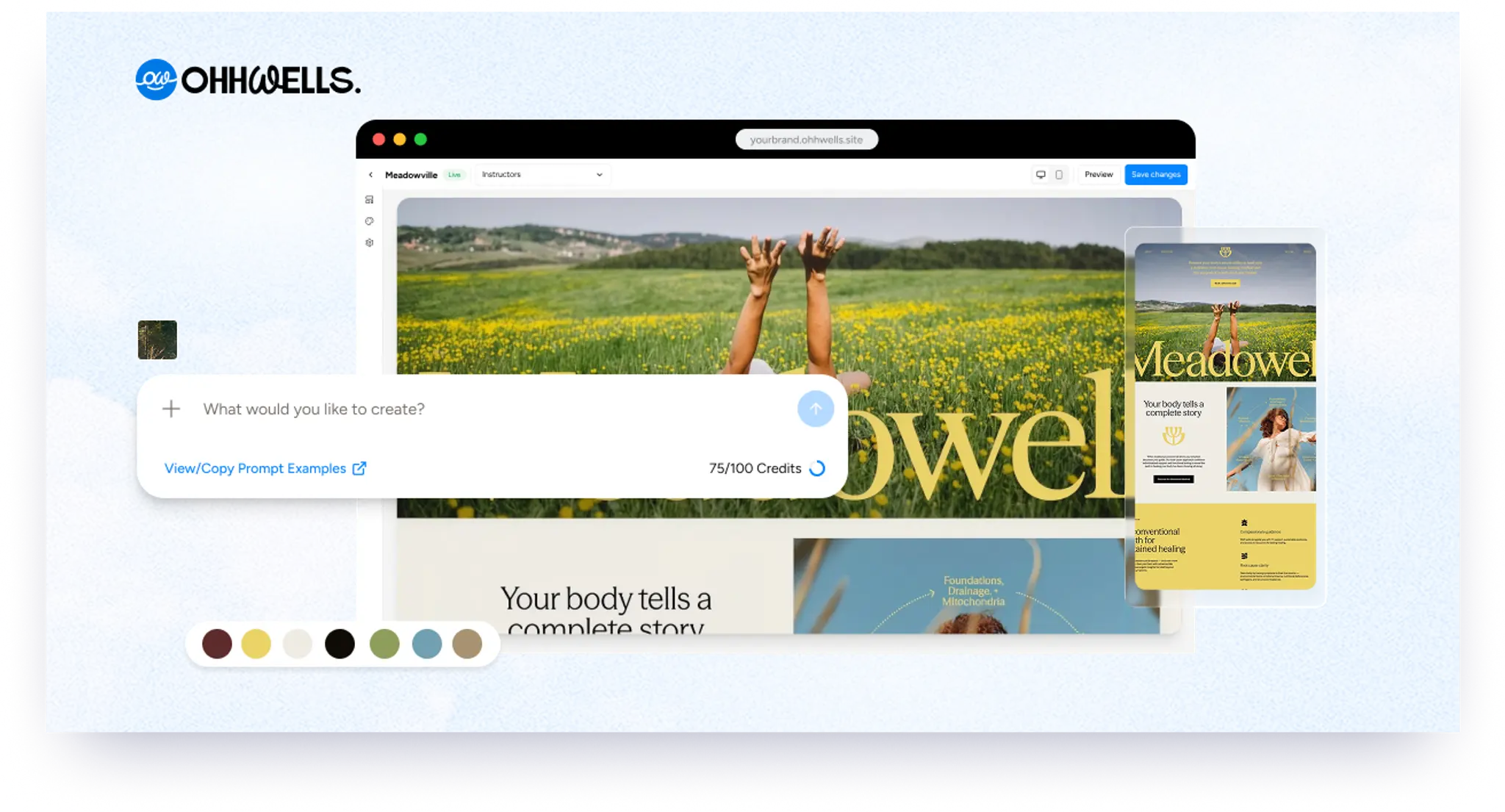
In short
To make any website template look like your brand with AI, lock in your brand settings first — typography, colours, and logo — then prompt one section at a time. Write text changes as "before → after," point to existing colours instead of describing moods to keep credits burn low.
You've picked a template. It looks great. But it's a pilates studio and you run a founder community. Or it's a community and you run an ice bath club. The layout is right — the words, names, and colours are not.
Here's the good news: you don't need to describe your dream website in one giant, perfect prompt. You just need to give the AI clear, small instructions — the same way you'd brief a freelancer.
This is the playbook we use ourselves. It works for editing a template or building from scratch.
The Golden Rule: Say what to change AND what to keep
Most bad AI edits happen because people only say what they want changed. The AI then "helpfully" redesigns everything else too.
Every good prompt has two halves:
- The change: "Rename the packages, rewrite the copy, flip the colours."
- The protection: "Keep the same layout, fonts, and spacing. Only the text and colours change."
Before Anything Else: Lock In Your Brand Settings
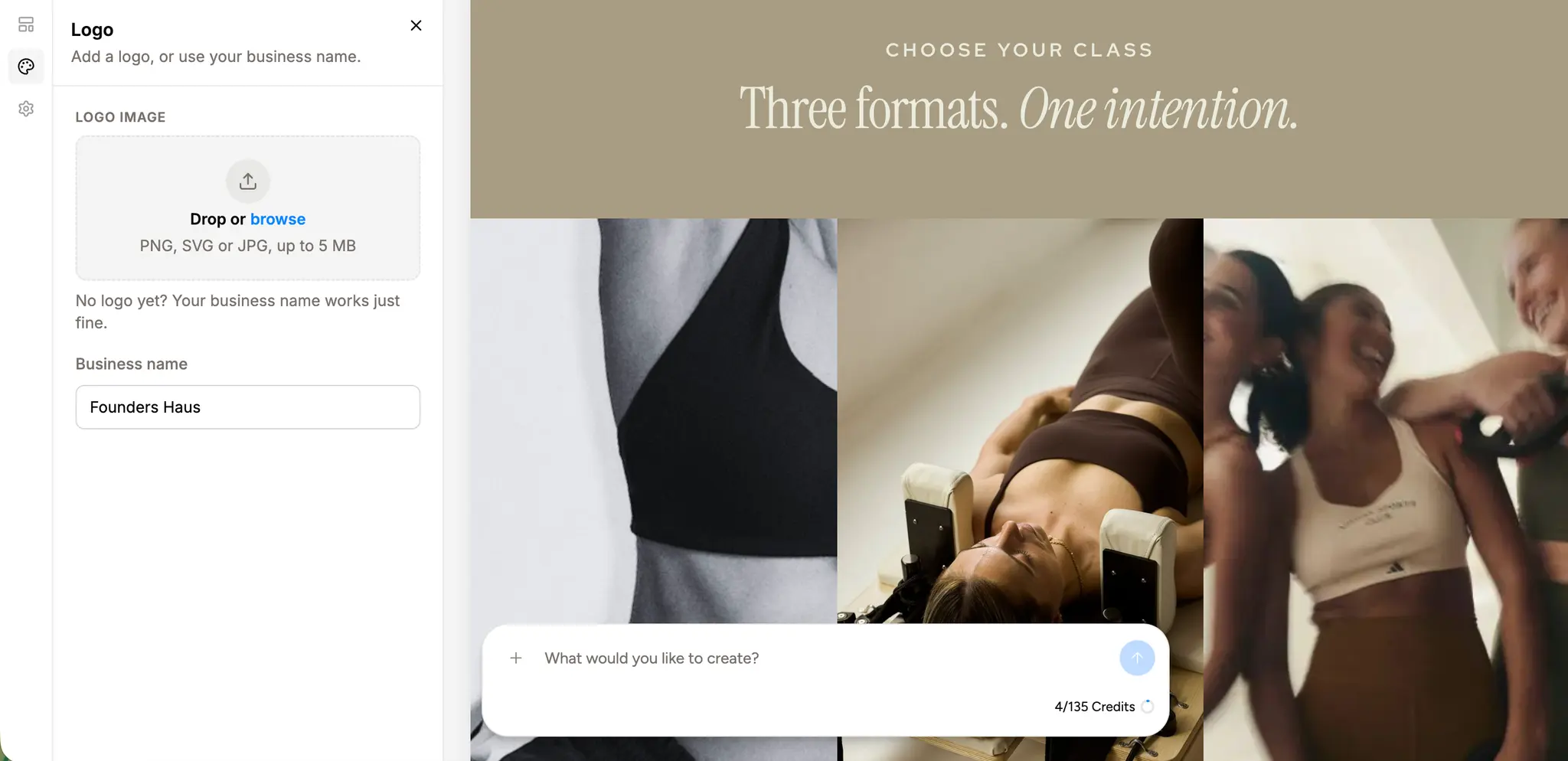
The single biggest time-saver in this whole playbook: define your brand settings (typography, colours and logo) once, at the very start — before you touch a single section.
If you picked any of our pre-built templates, this is already done for you — brand settings come built in out of the box. You can still modify them anytime, and changing them updates the look and feel of your entire website at once, so every page stays consistent.
Do this first:
These are my brand settings. Use them across the entire site
and remember them for every future edit:

Colours:
- Primary: [e.g. deep brown #4A2C1A] — buttons, headings, accents
- Background: [e.g. warm cream #F2EFE6] — page backgrounds
- Text: [e.g. dark charcoal #2B2620] — body copy

Typography:
- Headings: [e.g. an elegant serif]
- Body: [e.g. a clean, easy-to-read sans-serif]

Always keep text high-contrast and readable against its background.
Don't know your hex codes? No problem — upload your logo or a photo of your storefront, packaging, or Instagram feed to any AI tool such as Claude and ask:
Pull 3 brand colours from this image and give me the hex codes.
You'll have your palette in seconds — and doing this step outside our editor also helps you save credits on our platform.
Once your brand settings are locked in, everything downstream gets easier:
- You never have to describe colours or fonts again — "use my primary colour" is enough
- Every new section the AI generates automatically matches
- "Flip the background and button colours" works instantly, because the AI knows exactly which colours you mean
Think of it as briefing a new team member on day one, instead of correcting them on every task.
The 4-Step Prompt Formula
1. Work one section at a time
Don't prompt "make my whole site about my business." Prompt the pricing section. Then the hero. Then the FAQ. Small prompts = predictable results, and if something goes wrong, you know exactly where.
2. Give the AI direction, not dictation
If you already know the exact words you want, don't waste a prompt (or a credit) — just click into the text and type it yourself with the in-text editor.
Save your prompts for when you want the AI to write for you. Then, give it a clear direction plus a taste of your voice:
Rewrite the subtext for a founder community. Something like: 'No credit card. No commitment. Just one evening with founders who get it.
3. Describe colours by reference, not by name
"Make it warmer" means nothing. "Swap the colours — use the current button's brown as the background, and the current background cream for the button" is unmissable. Point at colours that already exist on the page whenever you can, and always add: "keep the text high-contrast and readable."
4. Structure your prompt as a numbered list
The AI follows numbered instructions far more reliably than a paragraph of wishes. Number the changes, then end with your protection line.
The Fill-in-the-Blank Template

Copy this, fill in the brackets, and you're 90% there:
Update the [section name] as follows:

1. Rewrite the copy for [my business type / audience]:
- [Element]: "[current text]" → "[new text]"
- [Element]: "[current text]" → "[new text]"

2. Adjust the structure:
- [e.g. remove extra pricing tiers, change one-off vs monthly billing]

3. Update the colours:
- [e.g. background → current button colour; button → current
background colour; keep text high-contrast and readable]

Keep the same layout, fonts, and spacing. Only change what's listed above.
A Real Example

Here's that formula applied to turning a fitness studio's pricing section into a founder community's:
Update the pricing section as follows:
1. Rename the packages for a founder community:
   - "Intro Week" → "First Gathering" — one-off pass for first-timers
   - "Express" → "Circle" — monthly, 1 gathering a week
   - "Standard" → "Inner Circle" — monthly, 2 gatherings a week
   - Remove all other packages

2. Adjust the pricing structure:
   - First Gathering: one-off payment
   - Circle and Inner Circle: billed monthly

3. Rewrite the perks list for founders, e.g.:
   - Priority RSVP for gatherings
   - Members-only community chat
   - Guest pass to bring a founder friend
   - Pause anytime · Cancel anytime
Keep the same layout, fonts, and visual style. Only change the text
and remove the extra tiers.
No jargon. No code. Just a clear brief.
Quick Checklist Before You Hit Enter
- Have I locked in my brand settings (typography, colours, logo) at the start?
- Am I prompting one section, not the whole site?
- Did I write text changes as before → after?
- Did I point at existing colours instead of describing moods?
- Did I ask for high-contrast, readable text?
- Did I end with "keep the same layout, fonts, and spacing"?
If all five are ticked, you'll get what you asked for — usually on the first try.
Don't Like the Copy AI Generated? Fret Not.

Sometimes the AI gets you 90% there, but that last 10% — a word, a phrase, the way you would say it — only you can write.
No need to burn another prompt trying to explain it. Just click into any text on your page and edit it directly with our in-text editor, exactly the way you want it. Type, tweak, done — like editing a document.
Prompts for the big moves, direct edits for the finishing touches. That's the workflow.

Keep reading
Does Your Website Look AI-Generated? A 4-Point Check
Run four quick checks on your homepage to see if it looks AI-generated, from copy to photos, plus a simple fix for each one so it looks like your business.
Leaving Squarespace? How to Move Your Website Without Losing Your Google Ranking (2026)
Squarespace only exports part of your site. Here's what you can take with you and how to move step by step without losing your Google ranking.
Leaving Wix? How to Move Your Website Without Losing Your Google Ranking (2026)
Wix doesn't let you export your whole site. Here's what you can take with you and how to move off Wix step by step without losing your Google ranking.
Leaving WordPress? How to Move Your Website Without Losing Your Google Ranking (2026)
Thinking of leaving WordPress? Here's how to move your website step by step without losing your Google ranking, your domain or your email.
Why AI Websites All Look the Same (And How to Make Yours Look Like Your Brand)
AI websites look the same because tools share training data, component libraries, and vague prompts. Here's the five-step fix that works in any tool.
How to Use AI to Design Website Sections (Step-by-Step, With Prompts That Work)
A step-by-step guide to designing website sections with AI — set your brand first, then prompt one section at a time. Includes copy-paste prompts.