
How do I set up my navigation and footer?
Set up the menu at the top of your OhhWells site and the footer at the bottom, so visitors can find their way and see you're a real business.
Last updated October 8, 2026
Your navigation is the menu at the top of your site. Your footer is the strip at the bottom. Both appear on every page, so you set them up once. Describe what you want in the prompt bar: keep the menu to three to five links and one button, and put your contact details in the footer.
You’ll need: an OhhWells site open in the editor, and some AI credits.
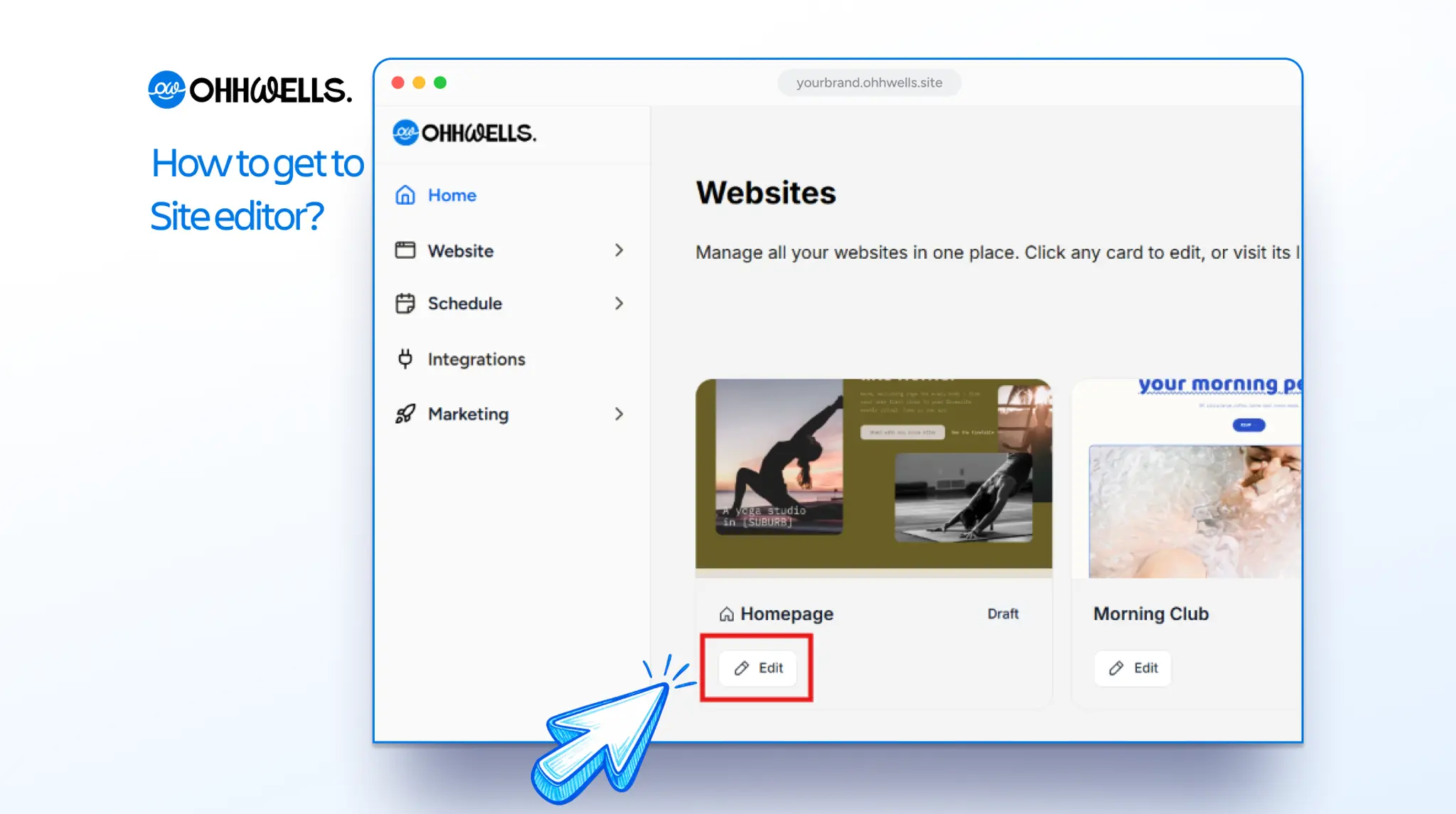
Set up your navigation
A good menu has your logo on the left, three to five links, and one button on the right. Every extra link is one more decision for your visitor, so only include pages that help someone decide.
- Click your menu, then describe what you want. Click anywhere on the menu at the top of your page. The prompt bar will show a Navigation tag, which means your prompt only changes the menu. Then type what you want, for example: "Update the navbar to show Services, Pricing, About and Contact, with one button that says Book a class".
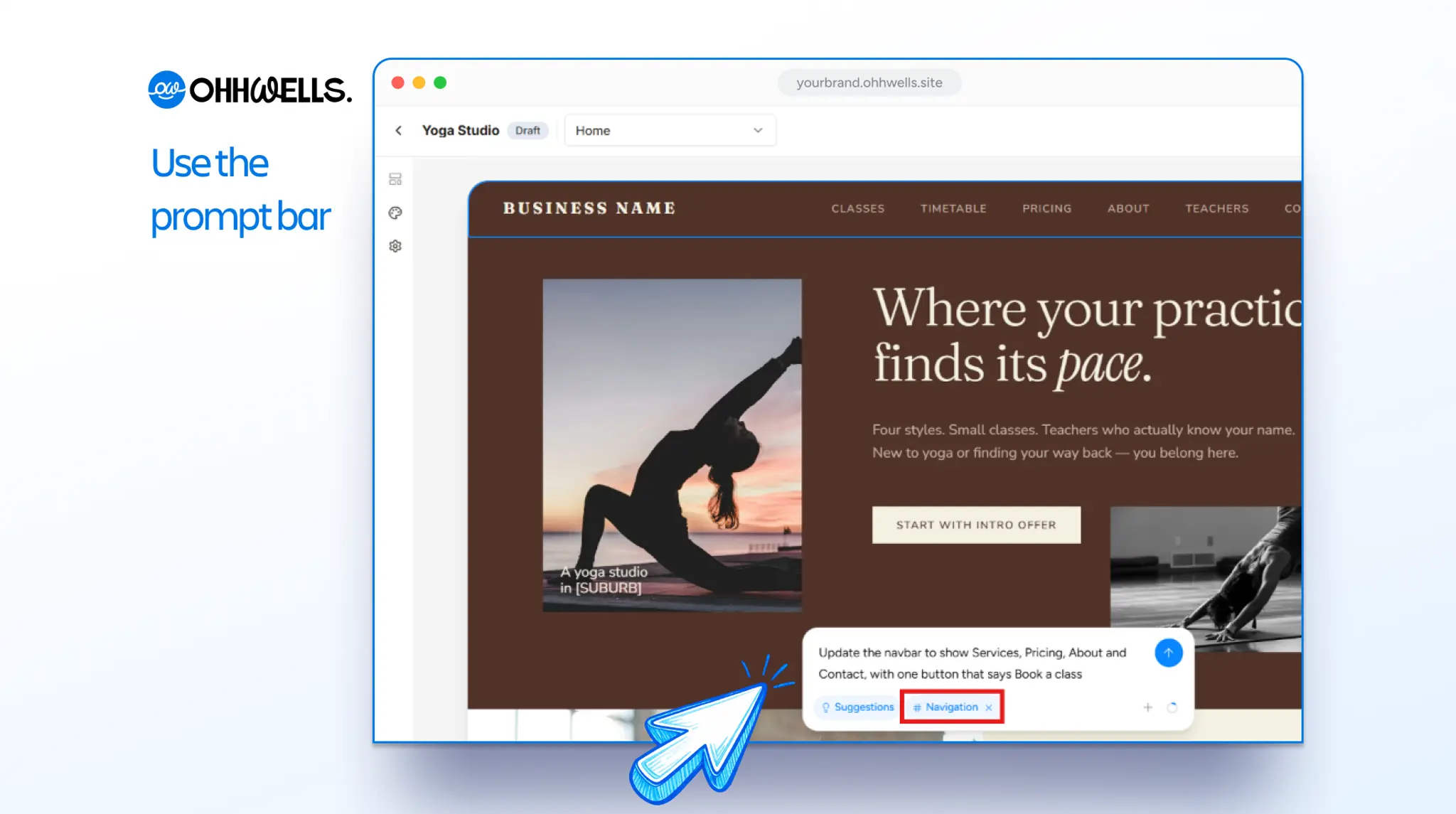
- Press send, then click Accept to keep the result or Discard to try again.
- Use the same button as your hero. Same words, same action. Your menu stays at the top as visitors scroll, so that button is always one tap away.
- Fix small changes by hand. Click a link or the button and type to change its words. To change where it goes, click the link icon in the small toolbar. Under Destination, choose a page or paste a URL, then click Save.
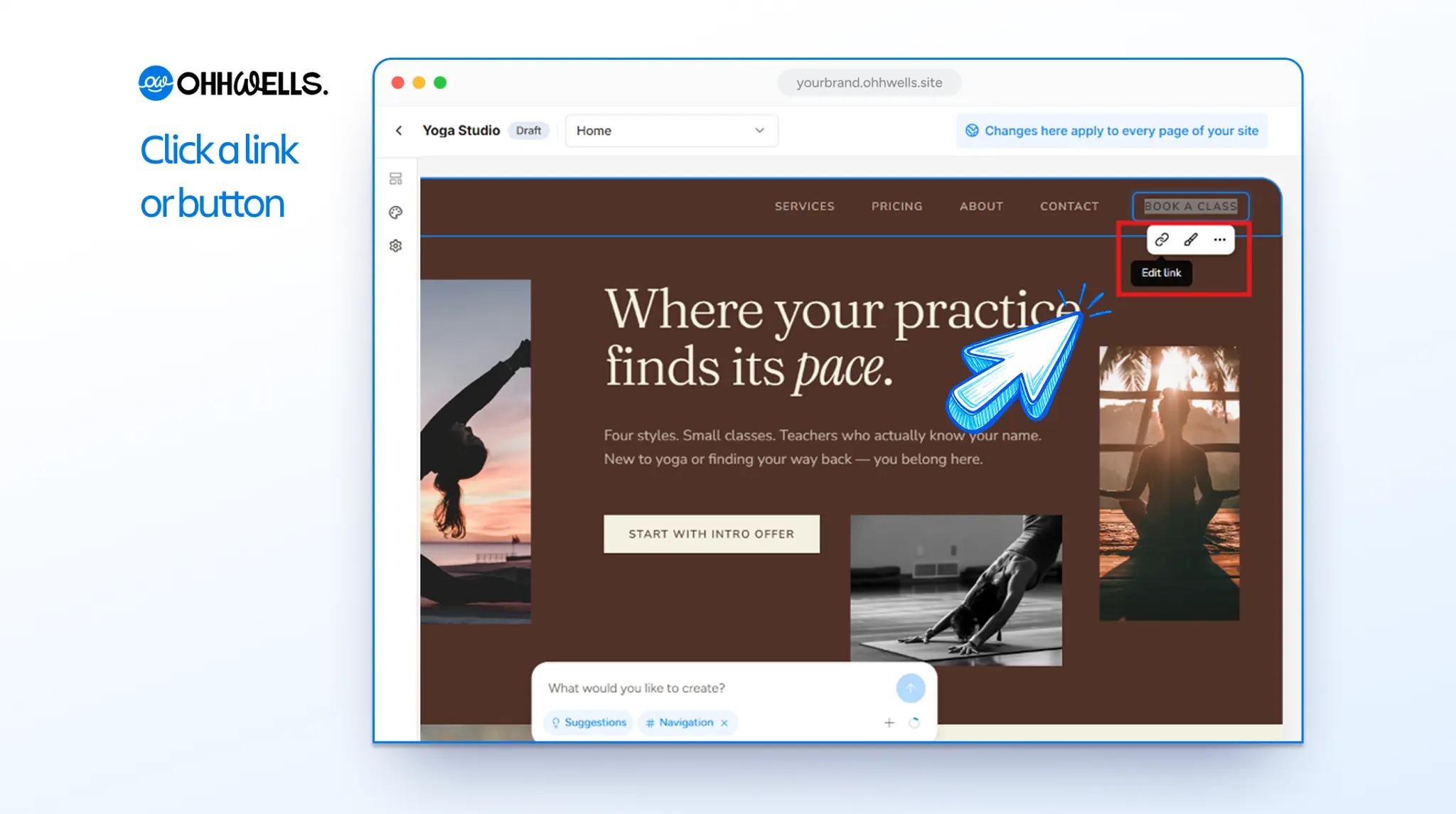
Your logo comes from your brand style, so you don’t need to add it again.
Set up your footer
Careful buyers scroll to the footer to check you’re a real business. Give them what they’re looking for:
- A real email, phone number, and address if you have one. This shows there's a person to reach.
- Links to your other pages. These help people who scrolled past the menu.
- Your social media links. These let people see you're active.
- Business details, such as your registration number, privacy policy and terms. These show you're legitimate.
- Click your footer, then describe what you want. The prompt bar will show a Footer tag. Then type what you want, for example: “Build a footer with our email, phone number and address, links to Services, Pricing and Contact, and our Instagram”.
- Press send, then click Accept or Discard.
- Check every detail. Click any text to correct it by hand.
Your footer shows on every page automatically. Update it once and it changes everywhere.
Check it on a phone
Switch to the mobile view in the editor. Your links fold into a menu, your button stays visible, and your phone number becomes tap-to-call. You don’t need to set any of that up.
Before you publish
Click every link and button in your menu and footer, the way a customer would. A link that goes nowhere makes a site feel unfinished.
Troubleshooting
My menu has too many links
Keep the three to five pages that help someone decide to buy or get in touch. Move the rest to your footer.
Does my footer need to be added to each page?
No. The same navigation and footer appear on every page of your site.
How do I change the logo in my menu or footer?
Change it in your brand style and it updates in both places. See How do I set my brand style?
A link goes to the wrong place
Click the link or button, then click the link icon in the small toolbar. Under Destination, choose the right page or paste a URL, then click Save. Because your menu and footer appear on every page, the fix applies everywhere.
Still stuck?
Email us at support@ohhwells.com and a real person will help.