
How do I set my brand style?
Set your colours, fonts and buttons once in OhhWells, with one AI prompt or by hand. Every section follows them.
Last updated October 16, 2026
You can set your brand style on OhhWells in two ways: type one AI prompt in the prompt bar, or use the Brand panel by hand. Your brand style is your logo, colours, fonts and buttons. You set your brand style once and every section follows it, including sections you add later.
You’ll need: an OhhWells site open in the editor. A logo file helps but isn't required. AI prompts use AI credits. The Brand panel is free.
Before you set your brand style: pick your route
- No brand yet: keep the look your site came with. Add your business name or logo and change one or two colours.
- You have a look you love (a moodboard, packaging, a site you admire): name the colours and the feel in a prompt, such as "dark green and cream, warm and calm".
- You already have a brand: reuse your existing logo, colour codes and fonts so customers see the same business.
All three end in the same place: one set of colours, fonts and buttons that your whole site uses.
How to set your brand style with an AI prompt
To set your brand style with an AI prompt in OhhWells:
- Open your site in the editor.
- Click an empty part of the page so nothing is selected. The prompt bar shows a Whole page tag.
- Type one brand prompt in the prompt bar, such as "Change the site's colors to dark green and cream."
- Press Enter. A brand prompt changes your whole site, so OhhWells asks you to confirm first.
- Check the preview. Click Accept to keep the new brand style, or Discard to go back.
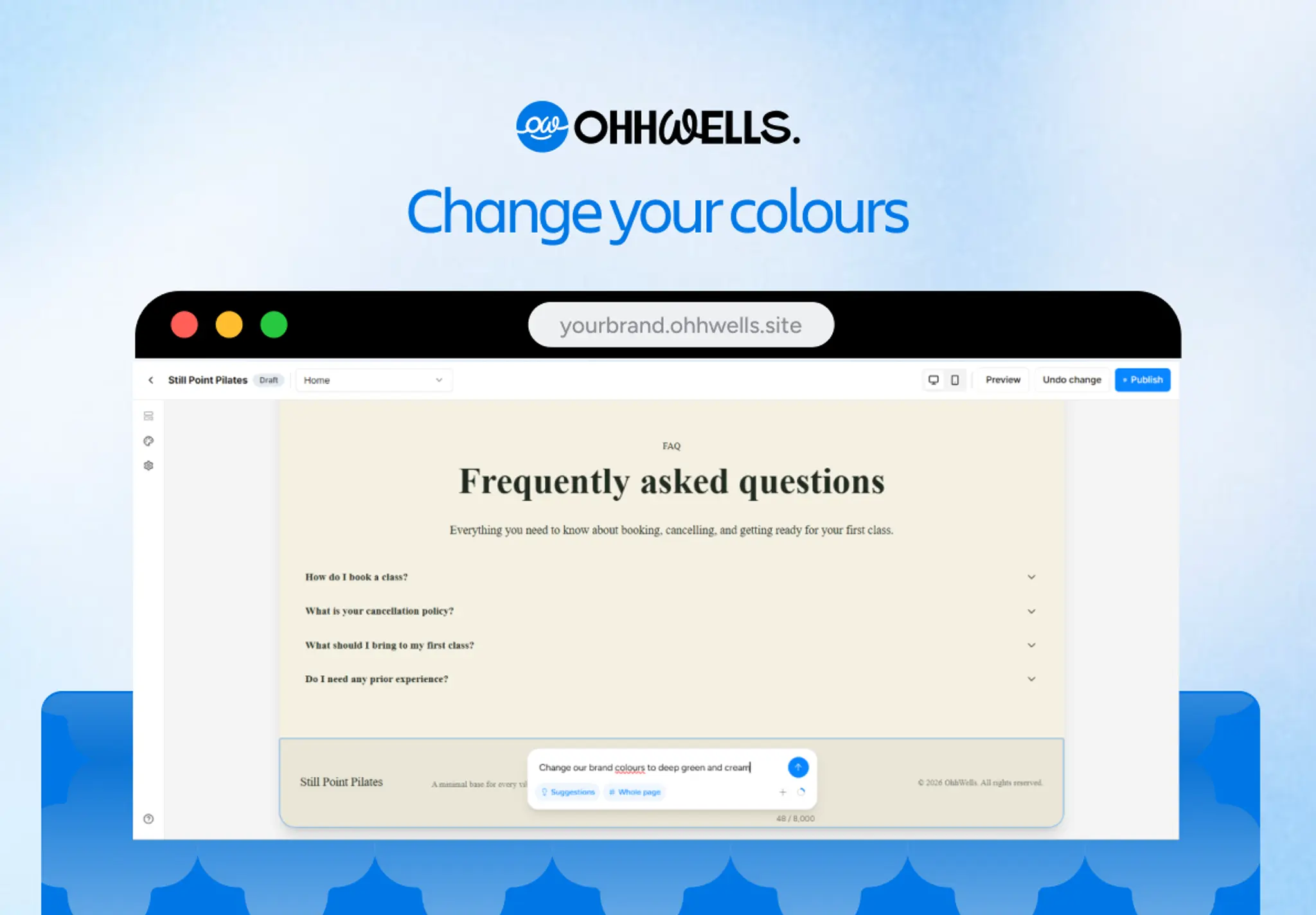
Important: check the tag before you send. If a section is selected, the prompt only restyles that one section. If the tag says Whole page, the prompt sets the brand style for the whole site.
Prompts you can copy to set your brand style
Swap the words in [brackets] for your own. Send one prompt at a time.
To set your colours in plain words:
- Select: nothing (the prompt bar shows Whole page)
- Prompt
Change the site's colors to [dark green and cream].To set exact colours and fonts:
- Select: nothing (the prompt bar shows Whole page)
- Prompt
Set primary to [#1E4D3B], background to [#FAF8F2],
text to [#122E24], accent to [#BFA6F0], headings to
[Lora] and body to [Inter].
To change your fonts only:
- Select: nothing (the prompt bar shows Whole page)
- Prompt
Use [Lora] for headings and [Inter] for body text.To change your button shape:
- Select: nothing (the prompt bar shows Whole page)
- Prompt
Make primary buttons pill-shaped.Three things make a brand prompt work:
- Name colours in plain words or hex codes. "Navy and cream" works. So does "#1E4D3B".
- Name a free Google Font. A prompt can only use free Google Fonts. To use a font file you own, upload it by hand (see below).
- Know the four colour names. In a prompt, "background" is the Light colour in the Brand panel and "text" is the Dark colour. Primary is for buttons. Accent is for small details.
How to style one section differently with an AI prompt
To give one section a look the Brand panel doesn't offer, click that section first, then describe the change:
To add a gradient to your hero:
- Select: the hero section
- Prompt: Give the hero a soft gradient from cream to olive green.
To make one section dark:
- Select: the testimonials section
- Prompt: Use a dark background on the testimonials section only.
To copy a layout you like:
- Select: nothing, with up to 3 screenshots attached in the prompt bar
- Prompt: Make a section like this.
OhhWells rebuilds the layout from your screenshot in your own colours and fonts. Borrow the structure and the feel, not someone else's brand.
How to set your brand style by hand
To set your brand style without AI, use the Brand panel. Changes in the Brand panel cost no AI credits.
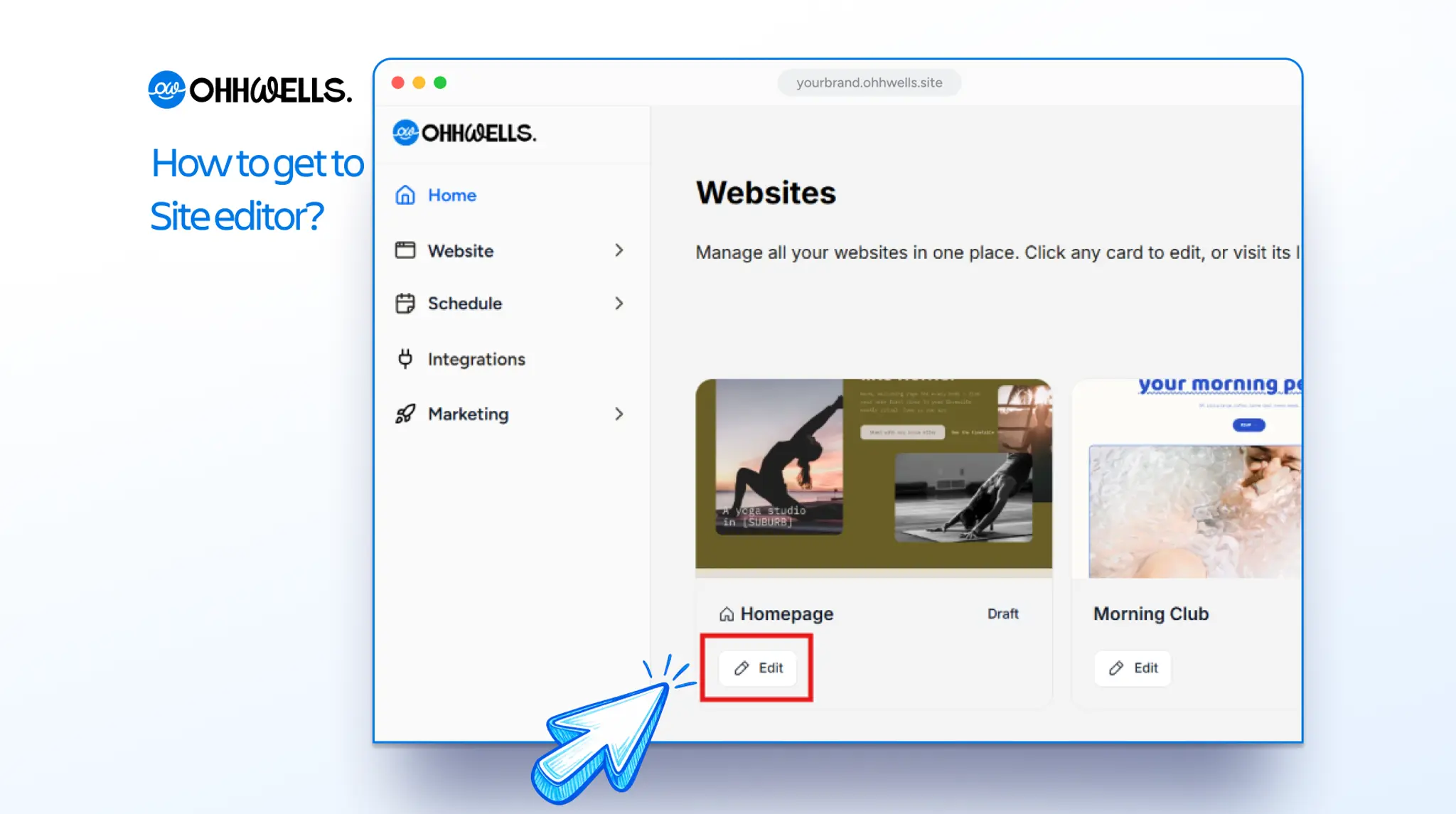
1. Open the Brand panel. From your Websites dashboard, click Edit on your site. In the editor, click the palette icon in the left sidebar.
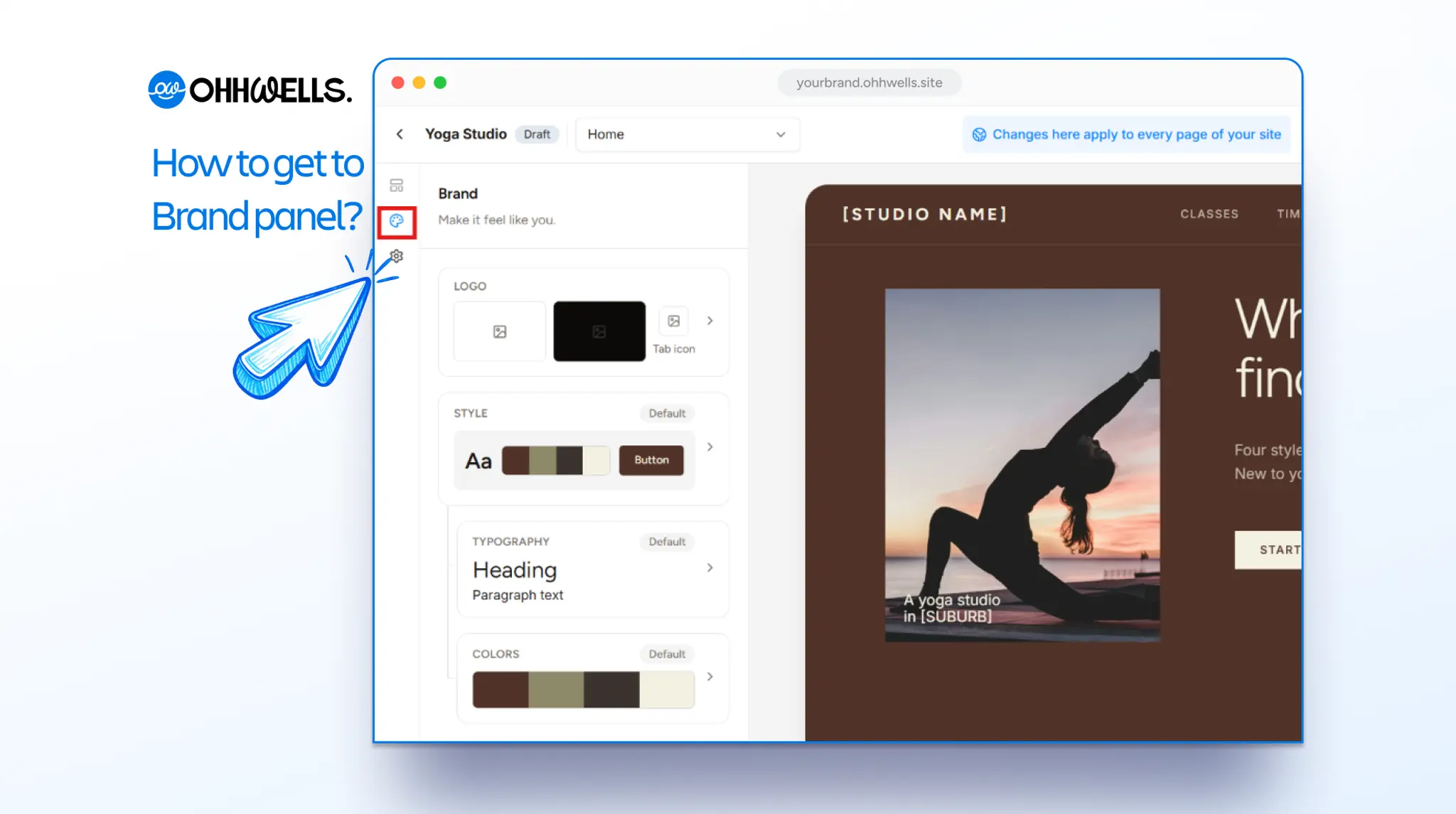
2. Add your logo. Upload a PNG, SVG or JPG, up to 5MB. For the cleanest result, use a PNG with a transparent background or an SVG. A wide (horizontal) logo works best, because tall logos become tiny on a phone. No logo yet? Type your business name instead.
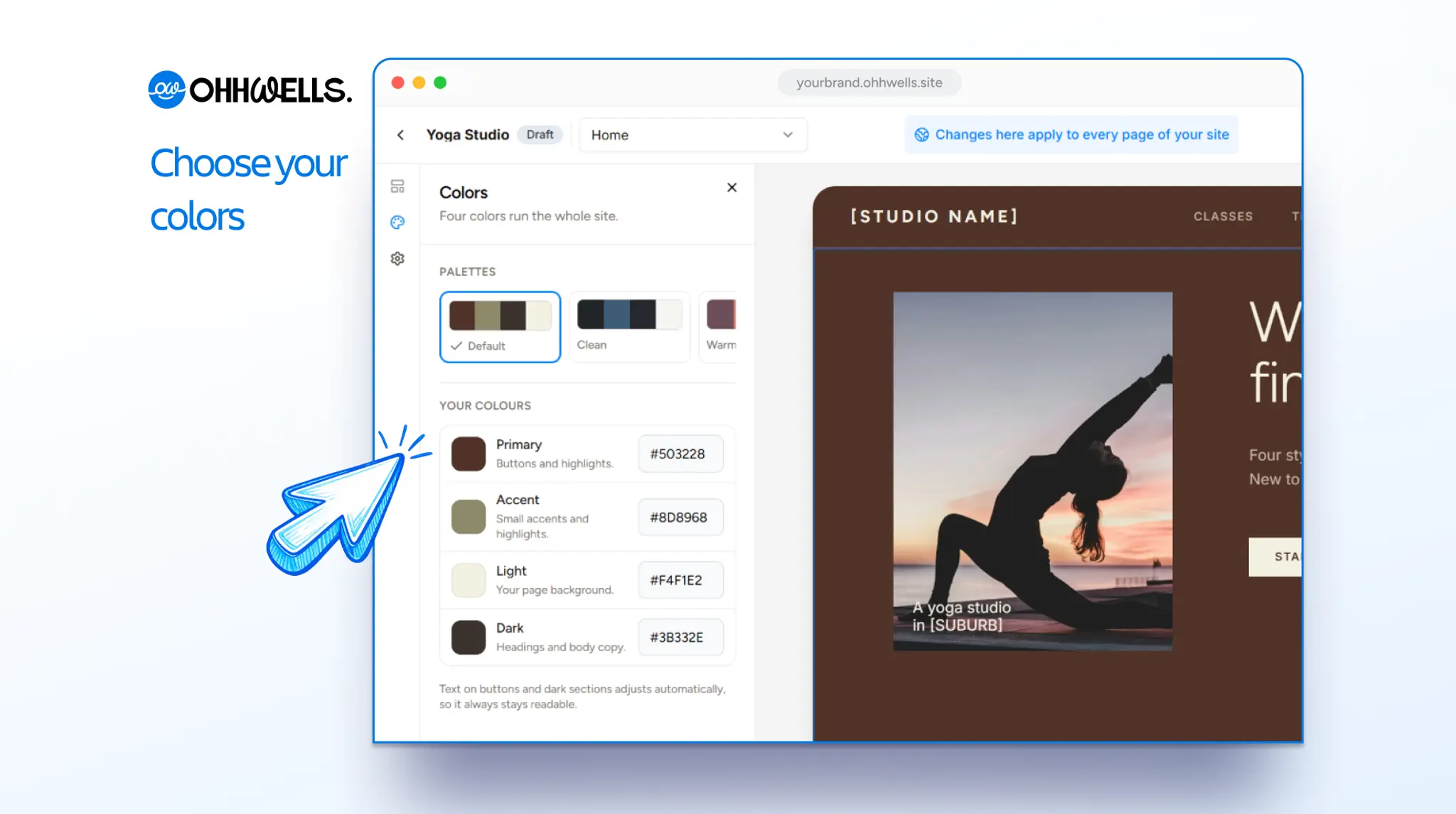
3. Choose your colours. Pick a ready-made palette, or set your own four colours:
- Light is your page background and covers most of the page, about 60%.
- Dark is for headings and body text, about 30%.
- Primary is for buttons and highlights, about 10%.
- Accent is for small details, so use just a touch.
Keep your primary colour for buttons and links. If it appears everywhere, it stops telling visitors where to click. Text on buttons and dark sections adjusts automatically, so it always stays readable.
4. Choose your fonts. Pick a ready-made pair, or choose your own heading and paragraph fonts. Use one with personality for headings and one plain, easy-to-read font for body text.
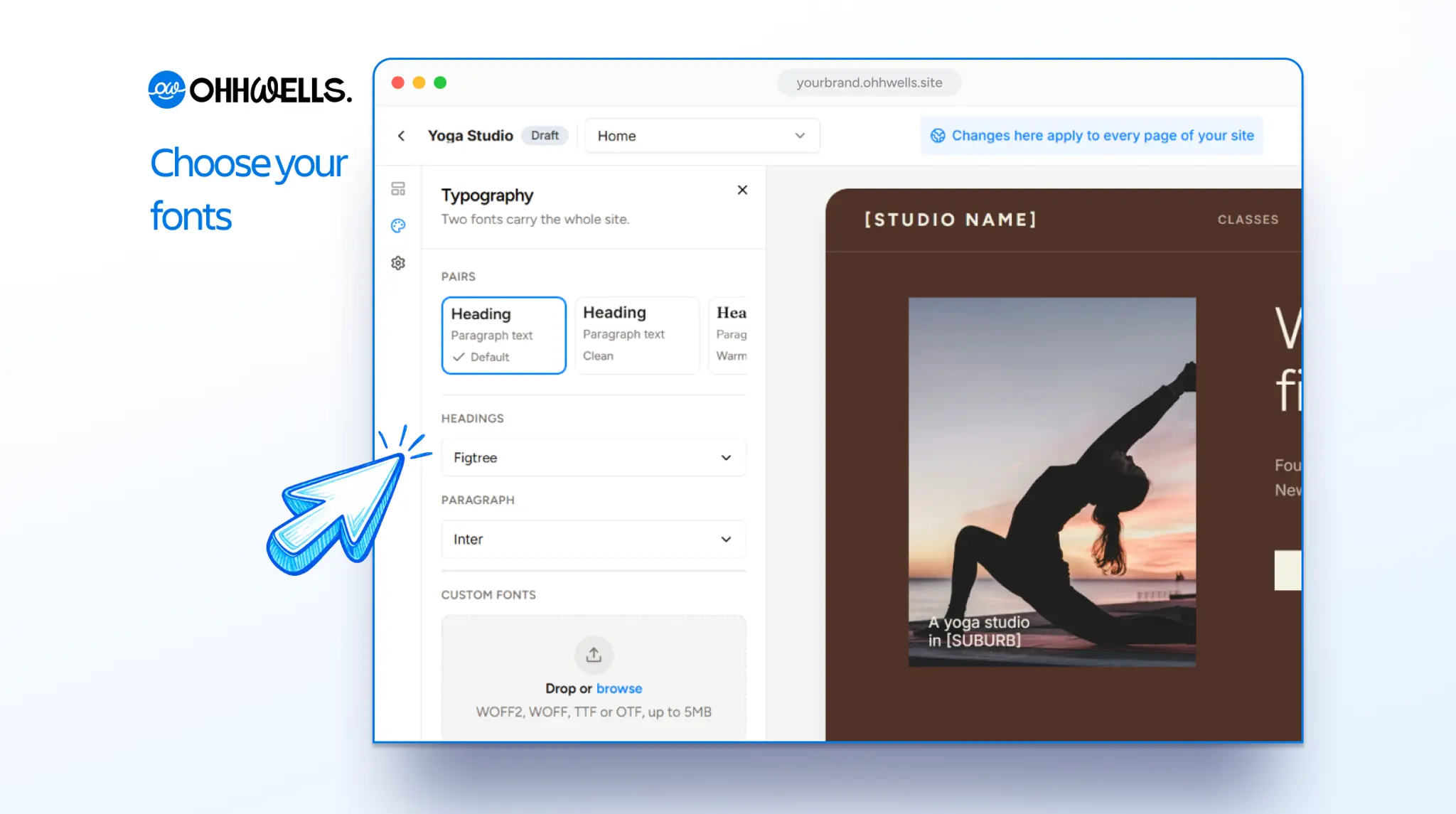
5. Check your site. Scroll through your page. Every section should now be in your colours and fonts, on desktop and on mobile.
What you can and cannot change in your brand style
- You can set colours, fonts and button shape for the whole site with one prompt.
- You can restyle a single section by clicking it first.
- You can change your brand style at any time. Your whole site updates, including pages you add later.
- You cannot use a paid font in a prompt. Upload the font file under Custom fonts in the Typography panel instead (WOFF2, WOFF, TTF or OTF, up to 5MB).
- You cannot send a prompt longer than 3,000 characters.
If setting your brand style does not work
The AI only changed one section, not my whole site
A section was selected when you sent the prompt. Click an empty part of the page so the prompt bar shows Whole page, then send the prompt again.
The font I want isn't in the list
OhhWells offers a set of Google Fonts, and not every font is included. If you have the font file, upload it under Custom fonts in the Typography panel. Otherwise, pick the closest match.
My logo looks too small
This usually happens with tall or square logos. Upload a wide version, with the icon and name side by side.
A new section doesn't match my brand
Click the section, then send this prompt: "Use my brand colours and fonts on this section." If it keeps happening, email us so we can take a look.
Questions about setting your brand style
Can I change my brand style later? Yes, you can change your brand style at any time. Send a new brand prompt or change it in the Brand panel, and your whole site updates.
Does setting my brand style cost AI credits? Setting your brand style with an AI prompt uses AI credits. Setting your brand style in the Brand panel is free.
Do new sections follow my brand style? Yes. Every new section OhhWells builds uses the colours, fonts and buttons in your brand style.
Still stuck?
Email us at support@ohhwells.com and a real person will help.