
How do I add and customise sections?
Add a new section to your OhhWells homepage by describing it in the prompt bar, then adjust the text, cards and buttons by hand.
Last updated October 8, 2026
A section is one block of your page, such as your pricing, reviews or FAQs. To add one, describe it in the prompt bar and press send. OhhWells builds it in your brand colours and fonts. Click Accept to keep it, then click any part of the section to adjust it by hand.
You’ll need: an OhhWells site open in the editor, and some AI credits. Setting your brand style first means every new section arrives already matching your site.
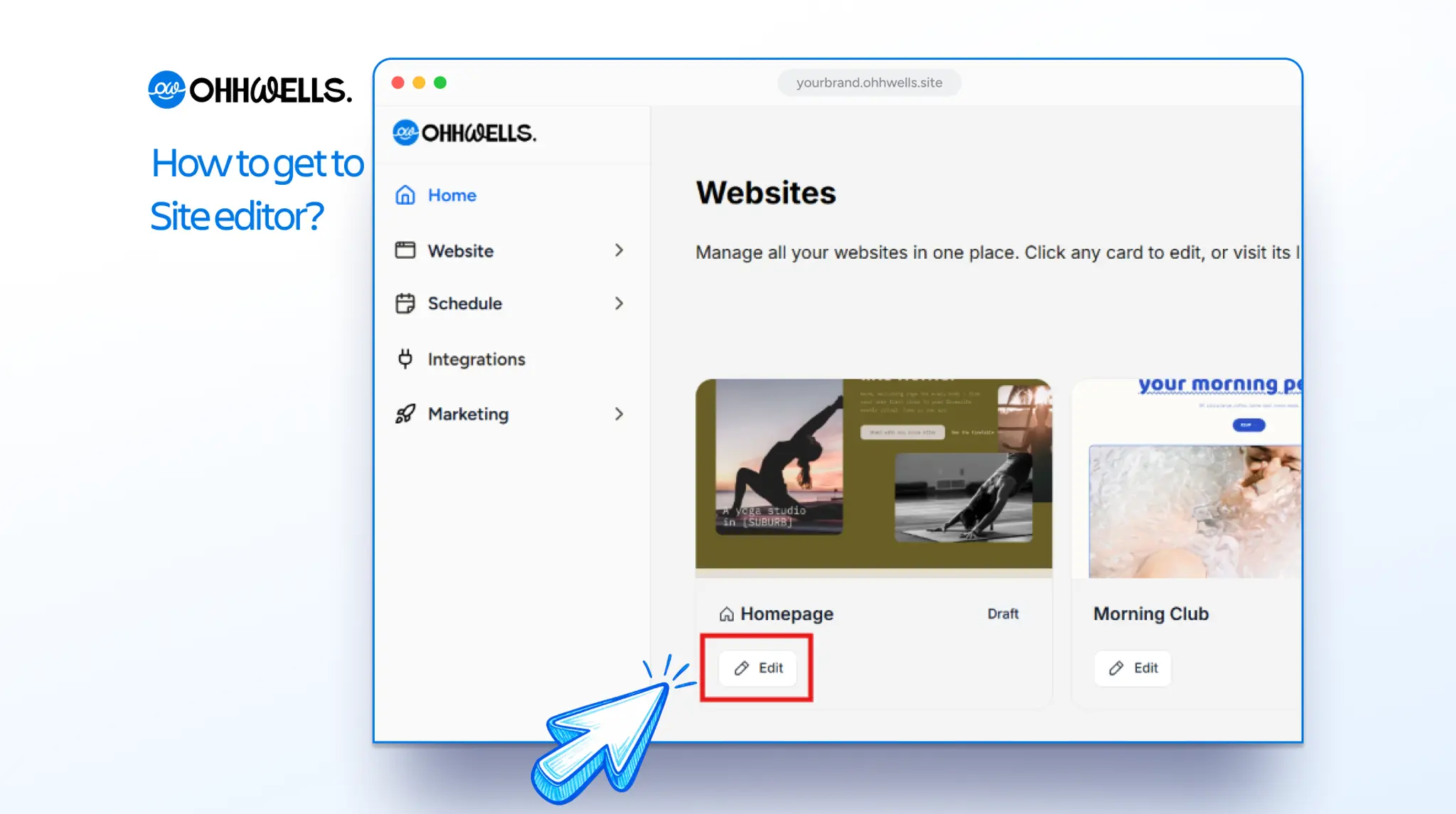
Add a section
- Type what you want in the prompt bar. Say what the section is and where it goes. For example: “Add a pricing section below the Services section”.
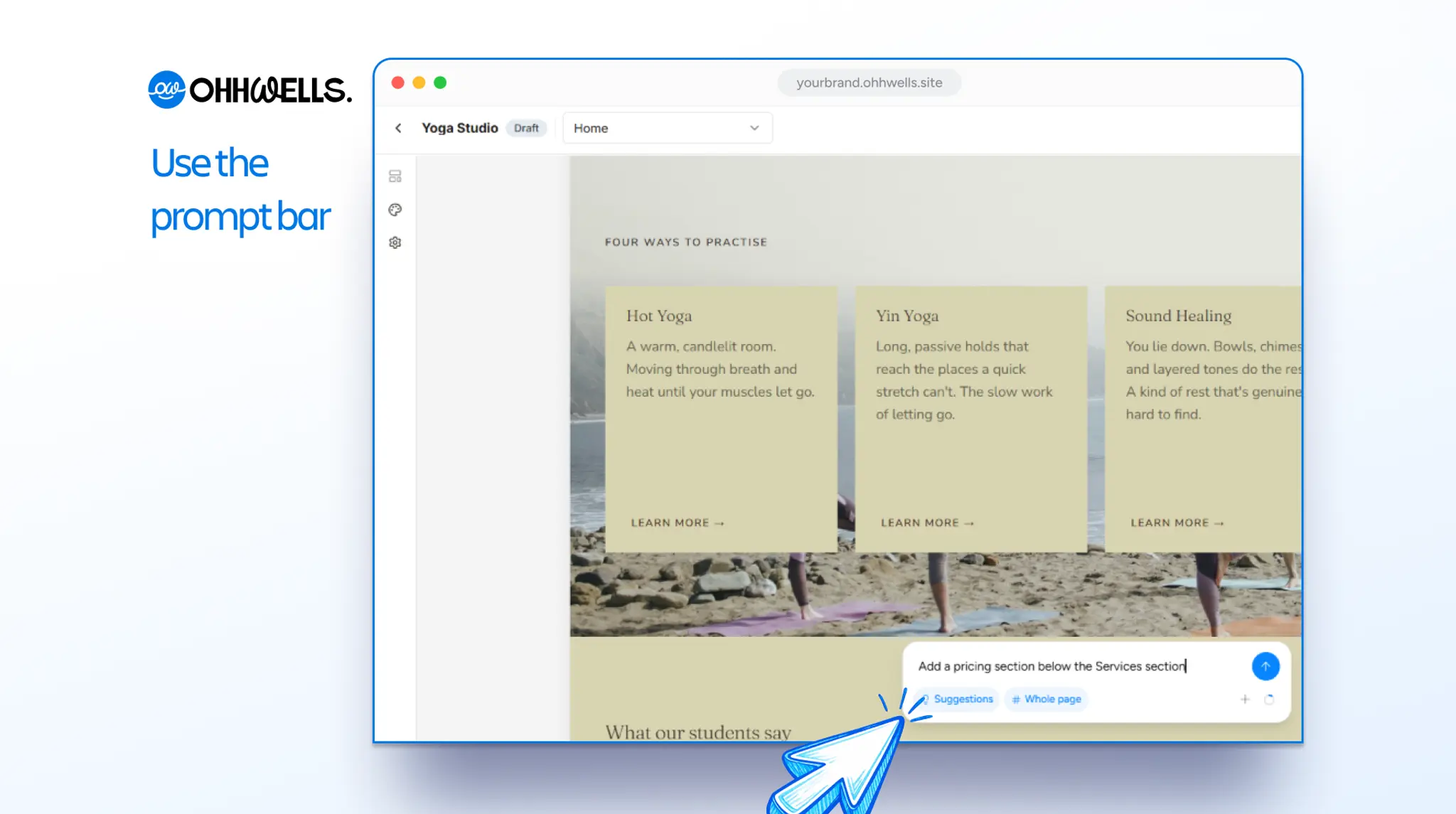
- Press send. OhhWells builds the section using what it knows about your business and your brand style. This usually takes under 30 seconds.
- Check the result. Click Accept to keep it. If it isn’t right, click Discard and try a different prompt.
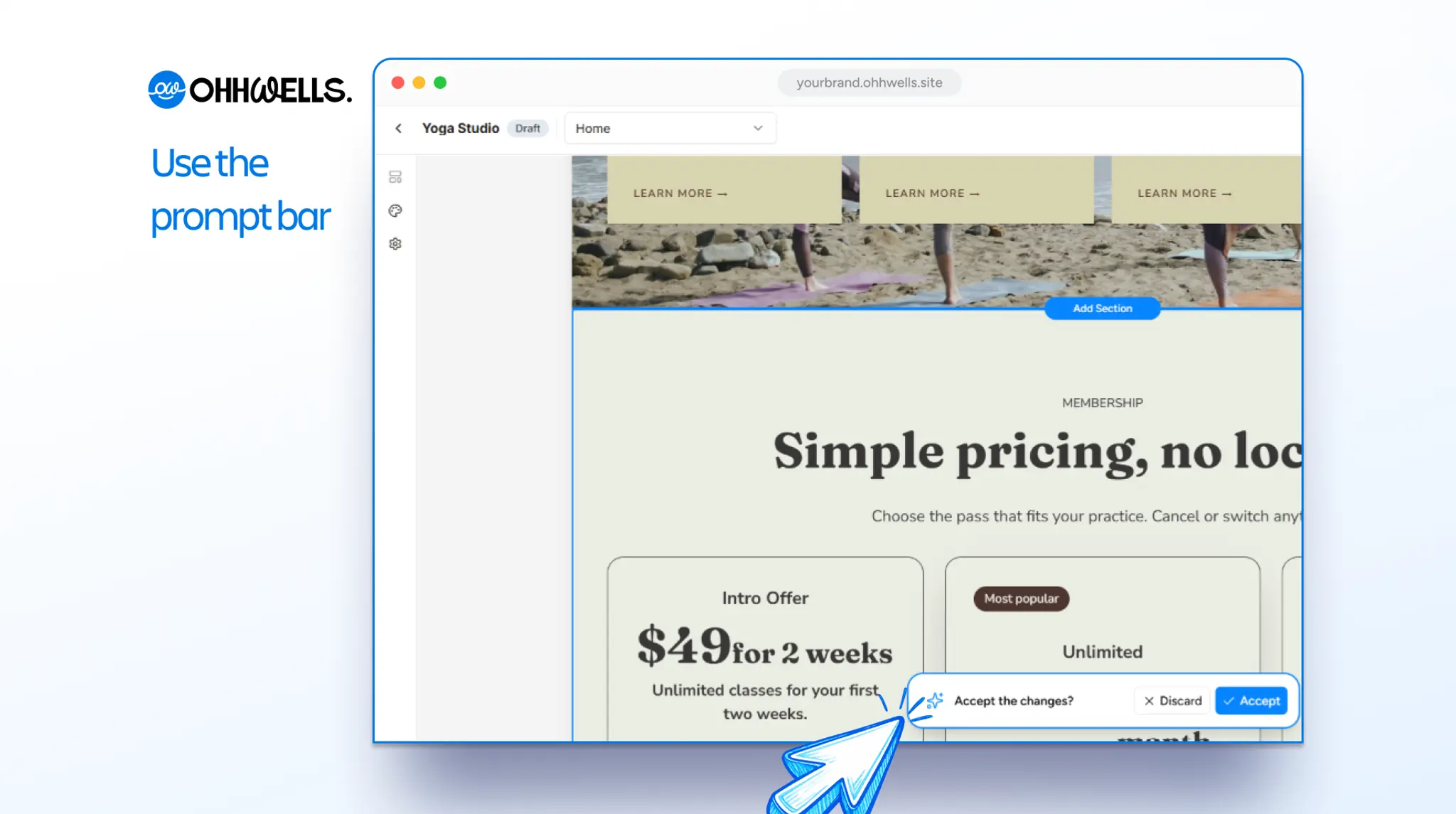
Customise a section
Once a section is on your page, you can adjust it without another prompt:
- To change any words, click the text and type.
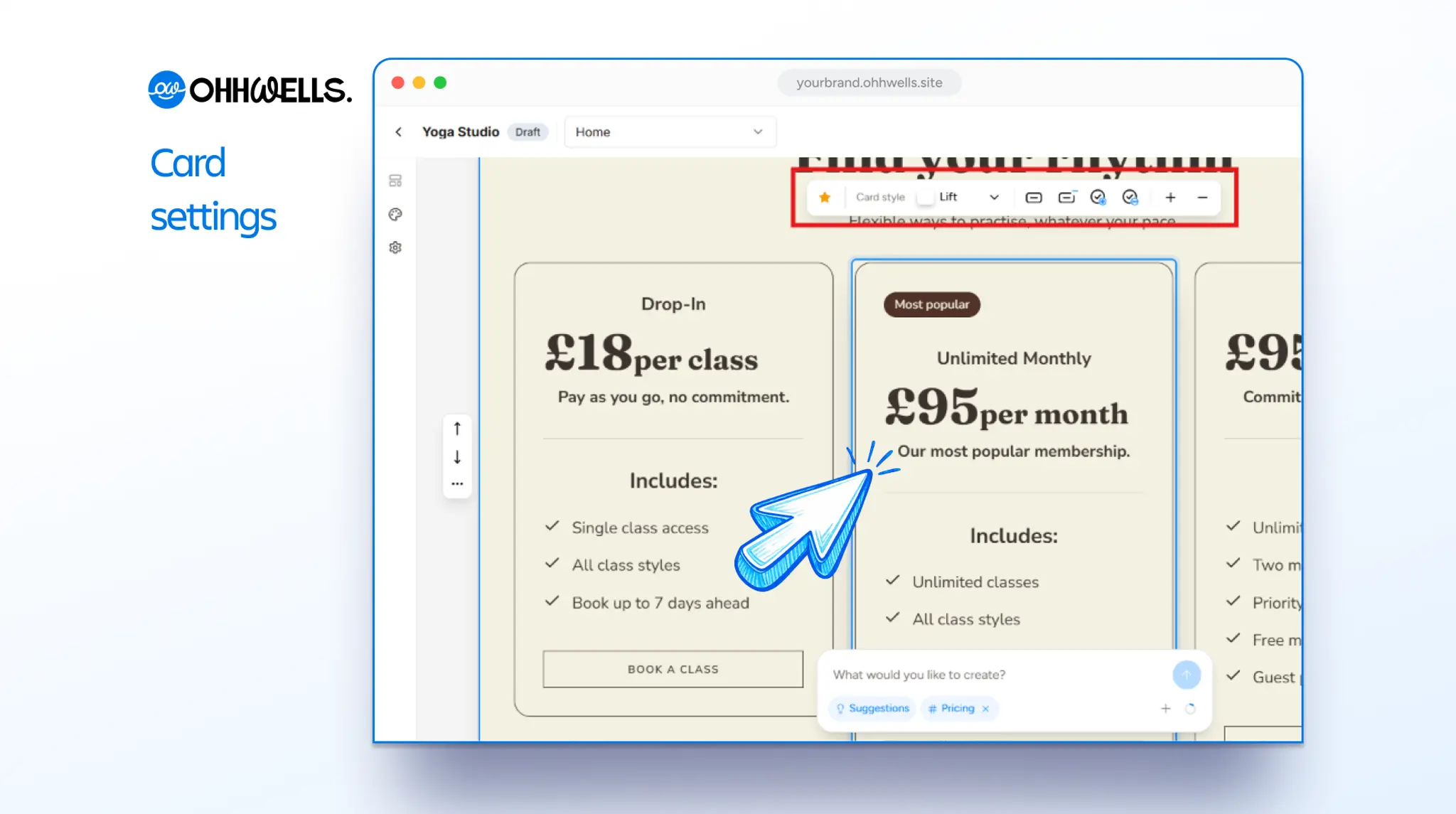
- To change how a card looks, click the card to open the toolbar, then choose a card style. Invert makes one card stand out, which is handy for your most popular plan.
- To add a line to a list, click the add feature icon and a new line appears.
- To add a second button, select the card and click Add button.
For changes the toolbar doesn't cover, use the prompt bar. For example: "Use a dark background on the testimonials section only".
Which sections does a homepage need?
Each section answers the next question in your visitor's mind, in this order.
- Your hero comes first. It answers "What is this, and is it for me?" with a headline, one line of text, one button and a real photo.
- A logo strip or a number comes next. It answers "Does anyone else use this?"
- Testimonials answer "Did it work for people like me?"
- How it works, in three steps, answers "Is this going to be hard?"
- Common worries about price, time or risk answer "But what about…?"
- A call to action at the end answers "What do I do now?"
You don't need all six to publish. A clear hero, what you offer and a way to contact you are enough to go live. Add the rest afterwards.
Build from a picture
If you can’t describe the layout you want, show it. Upload a screenshot of a section you like, and OhhWells builds that layout in your own colours and fonts. Borrow the structure and the feel, not someone else’s brand.
Three rules that save credits
- One change at a time. Ask for one thing, look at it, then ask for the next.
- Edit by hand where you can. A new prompt rebuilds the section, so it can come back different in ways you didn’t ask for.
- Say where, not just what. “Make the hero headline shorter” works better than “make it better”.
Troubleshooting
The section isn’t what I asked for
Click Discard and try again with more detail: what the section is, where it goes and what it should include.
I got a “Try a more specific prompt” message
Your prompt needs more detail. See How do I write effective prompts?
How does my section look on a phone?
Switch to the mobile view in the editor. Sections stack and buttons stay easy to tap. You don’t need to design a separate mobile version.
How do I move or delete a section?
Click the section you want to change, and a small toolbar appears on its left side. Use the up and down arrows to move the section one place at a time. To copy or delete it, click the … menu and choose Duplicate or Delete.
Still stuck?
Email us at support@ohhwells.com and a real person will help.