
How do I make an AI-built website look like my brand?
Every AI-generated section in OhhWells inherits your brand colours, fonts and buttons automatically. Use a specific prompt and your own photos to make it look like yours.
Last updated November 6, 2026
In OhhWells, an AI-generated section matches your brand by default: it inherits your site's colour palette, typography and button style the moment it's created. To make it look like yours rather than just on-brand, do three things — write a specific prompt, swap the stock photos for your own, and fine-tune by hand in the editor.
Step 1: Set your brand style first
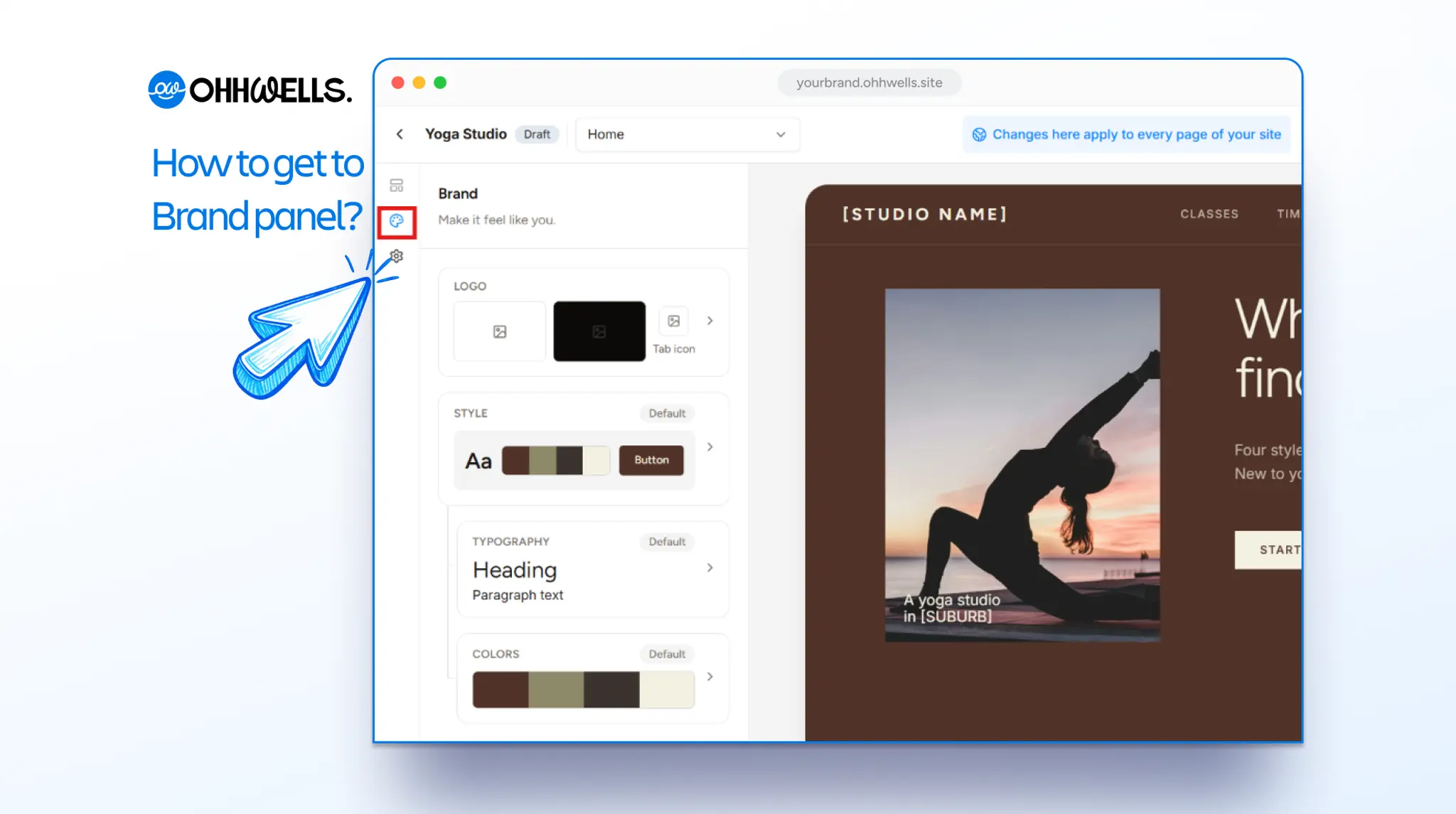
Generate sections after your brand style is set, not before. The AI prompt bar reads the brand style on every generation, so a section made before you've chosen your palette and fonts will be re-styled when you set them, but a section made after needs no fixing at all. See How OhhWells keeps every page on-brand.
Step 2: Write a prompt that describes your business, not a design
The AI already knows your colours and fonts. What it doesn't know is what makes your business different. Give it that.
Weak prompt:
Add a services sectionStrong prompt:
Add a services section for a Pilates studio with
three offers: 1:1 reformer sessions, small-group
classes (max 4), and a 6-week beginner
programme. Tone: calm and encouraging, no
fitness jargon.
The second prompt produces copy a visitor could only read on your site. The layout, colours and fonts take care of themselves. More examples: AI Prompt Playbook
Step 3: Generate from a reference image when you have a look in mind
If you've seen a section you like — on another site, in a Canva design, in a screenshot — upload it as a reference image and ask for a section based on it. OhhWells copies the layout and applies your brand style to it, so the structure is theirs and the look is yours. This works on every plan, including Free.
Step 4: Replace the default photos
The first draft uses default stock photos. Nothing says "AI site" louder. Click any image in the editor and upload your own. If you have no photos yet, a consistent set of stock images in one style (all bright, or all moody) still reads as a brand; a random mix doesn't.
Step 5: Fine-tune by hand
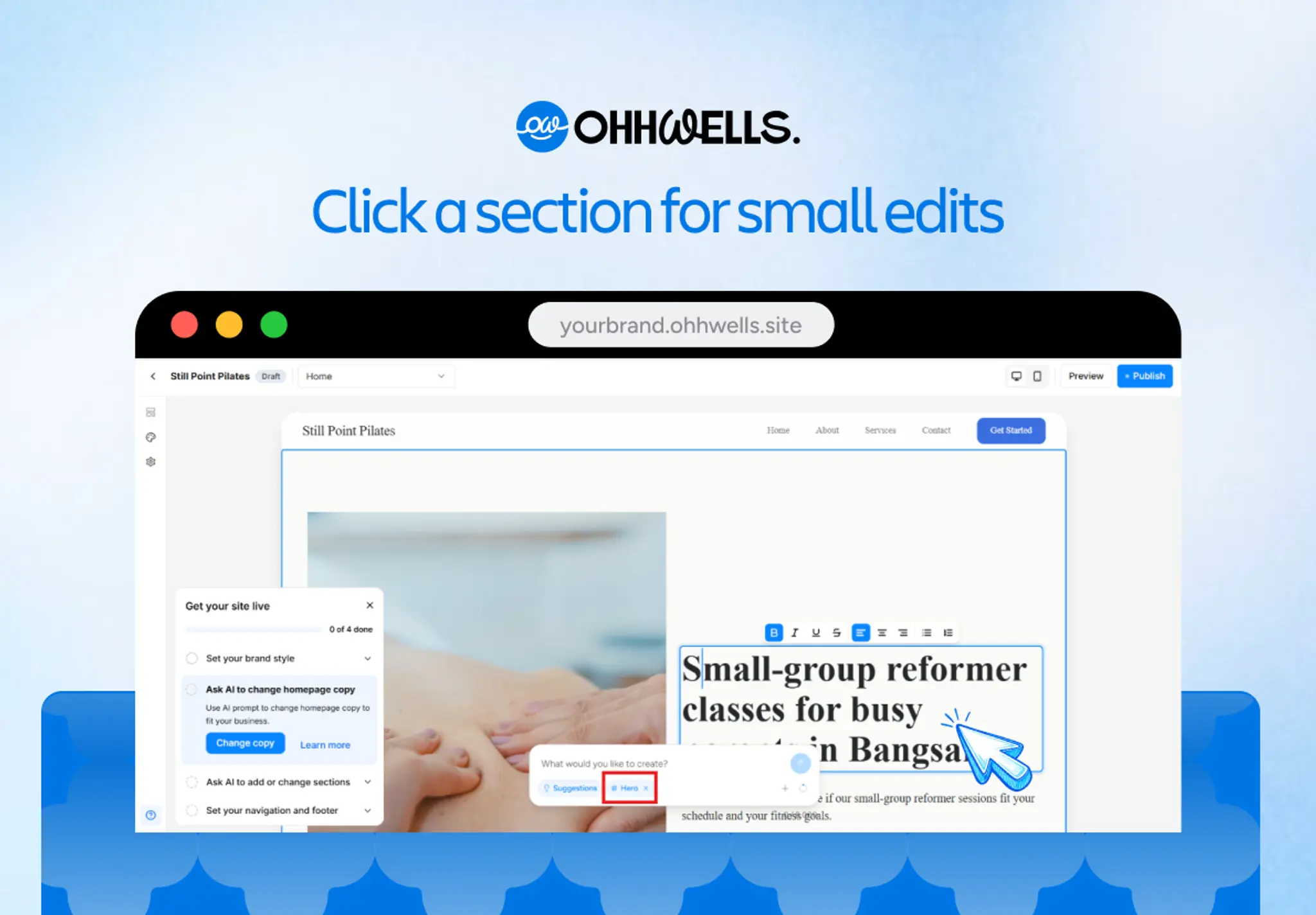
Everything the AI generates is editable in the visual editor without code: change a word, swap a column, drop a card, adjust spacing. Fix the one thing that's off instead of regenerating the whole section — regenerating costs credits and may change parts you liked.
To change one detail with a prompt, select the section first and say exactly what to change:
Change the background of the middle card to
the brand's primary colour
What if the section still looks generic?
- Copy sounds like any business: the prompt described the section, not your business. Rewrite the prompt with your offers, audience and tone.
- Photos look like stock: they are stock photos. Upload your own.
- Layout looks like every AI site: it’s the default layout for that section type. Generate from a reference image, or browse /sections for a different structure.
- Colours look off: either the brand style isn’t set, or that section has a hand-set colour override. Check the brand style, and remove the override.
FAQ
Do I need to repeat my brand colours in every prompt? No. The brand style is applied automatically; prompts are for content and layout.
Can I paste a long prompt from ChatGPT? Yes. Shorter, specific prompts usually give better results than long ones.
Does a section from a reference image copy their copy and images? No — only the layout. Your brand style and your words fill it.
How many credits does a section cost? Credits vary with the size of the generation; the Free plan includes 5 AI credits a day that reset daily