
AI Prompts for Pricing, Testimonials, Team & More
Copy-paste AI prompts for six common sections — pricing, testimonials, services, team, stats, and contact. Always use your real details.
Last updated July 31, 2026
Prompts for pricing, testimonials, services, team, stats & contact
🔲 Select the section you want each of these to appear near, then paste
Six ready-made sections beyond your hero and About. Fill in your real details before pasting — never let the AI invent your numbers, reviews, or team.
Pricing
Example: "Starter — RM99/mo — 1 studio, 50 bookings. Includes: online booking, email confirmations."
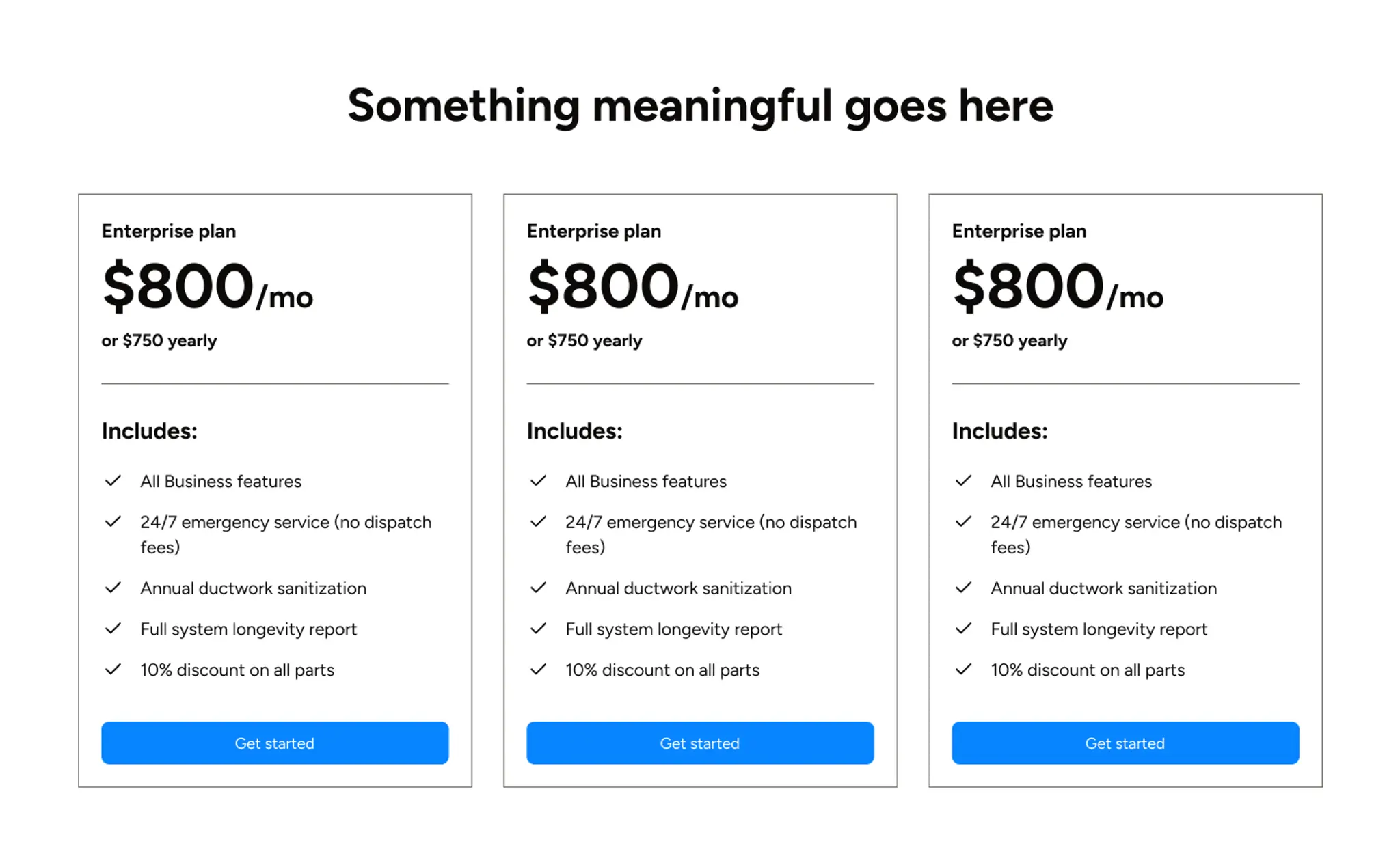
Create a pricing section with a centered heading and
three plan cards side by side. Each card shows the plan
name, the monthly price with a yearly price below it,
then an "Includes:" checklist of features, and a "Get
started" button at the bottom. Use these real plans and
prices, don't invent them: [paste each plan as name —
price — features]. Dark text on a light background.
Testimonials
Don't have reviews yet? Say so — the AI will add clearly-marked placeholders so you remember to swap them in before you publish.
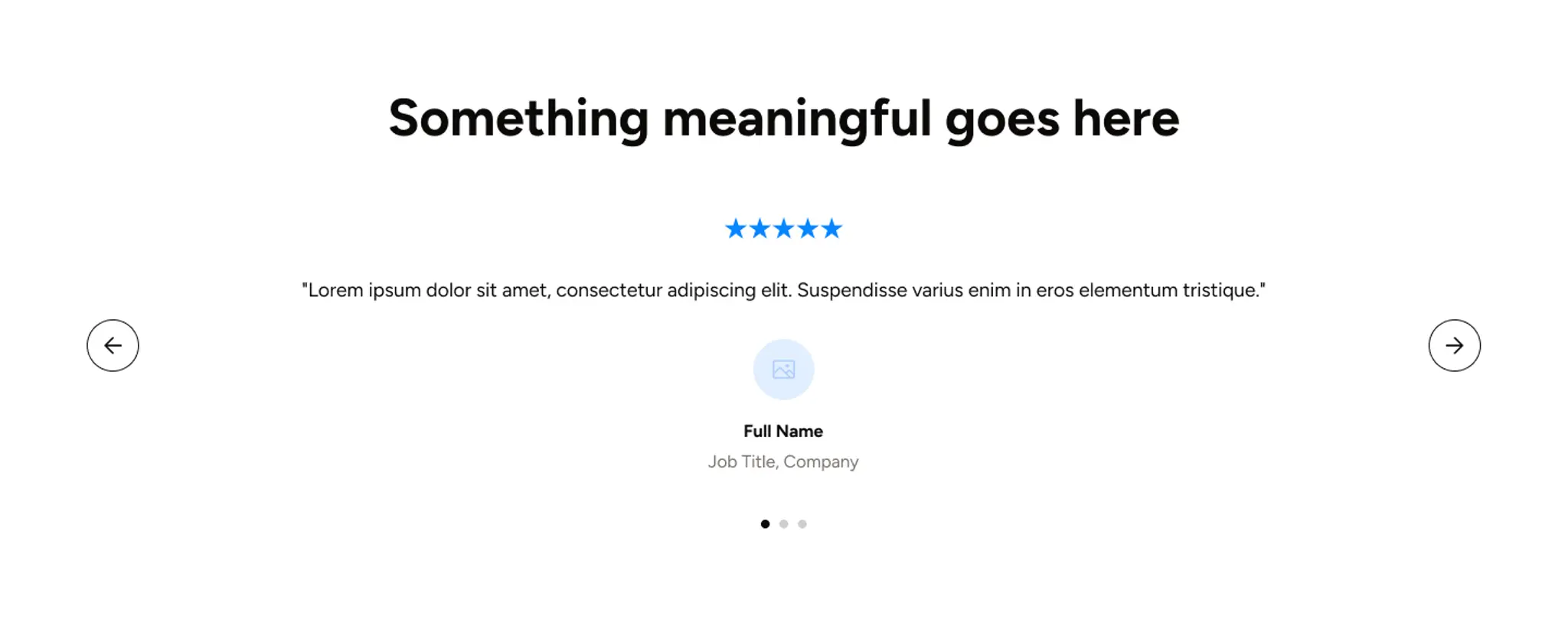
Create a testimonials section with a centered heading
and a carousel showing one testimonial at a time. Each
shows a star rating, the quote, then a small avatar with
the person's name and their job title and company
beneath. Add left and right arrows and dots to move
between them. Use these real testimonials, don't invent
them: [paste each as quote — name — title, company —
rating]. If I haven't given you any, mark them clearly as
placeholders. Dark text on a light background.
Services
Example: "Reformer Pilates — full-body strength and flexibility, all levels welcome."
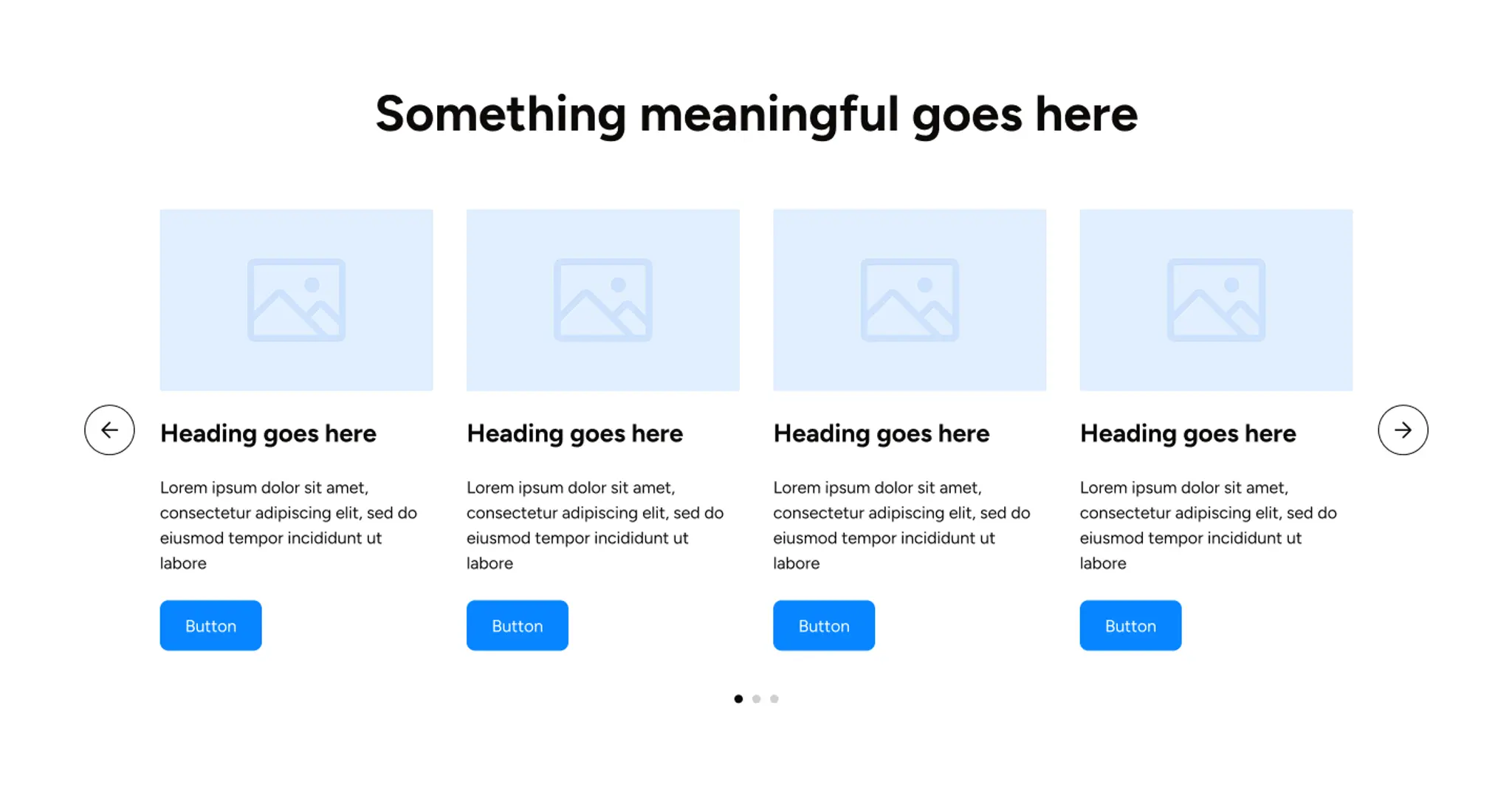
Create a services section with a centered heading and
a row of cards in a carousel. Each card has an image at
the top, then a heading, a short paragraph, and a
button. Show about four at a time with left and right
arrows and dots underneath. Use these real services,
don't invent them: [paste each as name — one-line
description]. Dark text on a light background.
Team
Example: "Aina Rahman — Lead Instructor, OhhWells Studio — 8 years teaching yoga across KL."
Create a team section with a centered heading and a
row of member cards in a carousel. Each card has a
round avatar at the top, then the person's name, their
job title and company, a short bio, and a button. Show
about four at a time with left and right arrows and dots
underneath. Use these real team members, don't invent
them: [paste each as name — job title, company —
one-line bio]. Dark text on a light background.
Stats
Example: "500+ — Happy clients — Serving the Klang Valley since 2019."
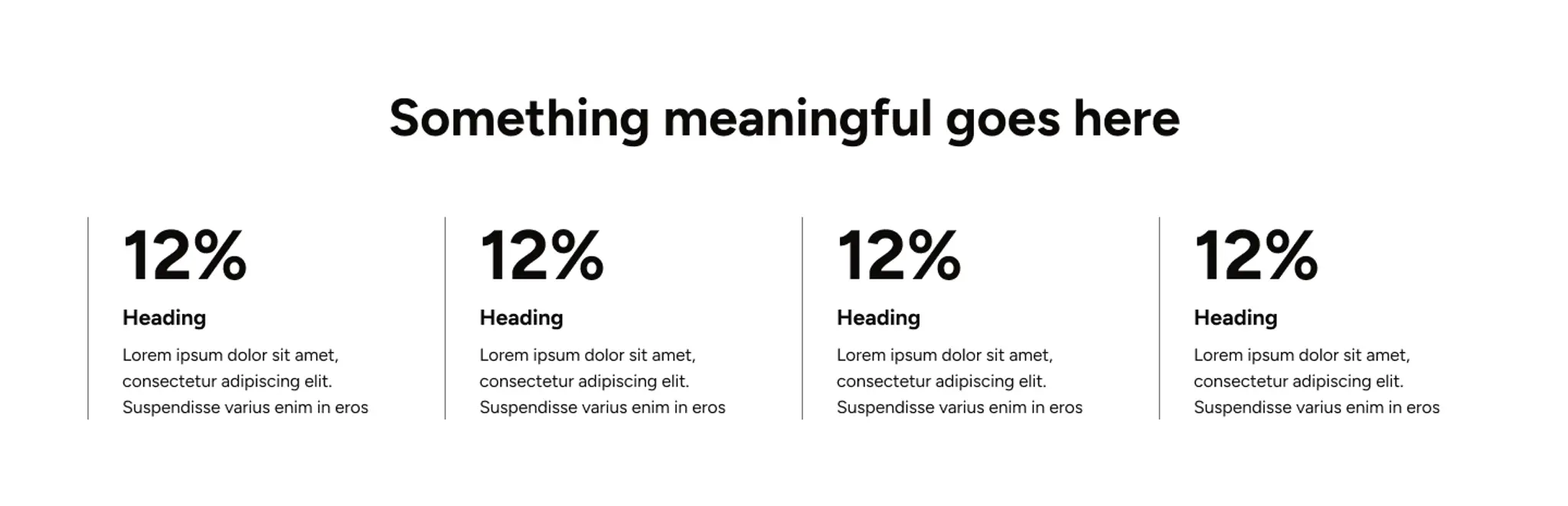
Create a stats section with the heading on the left and
a two-by-two grid of statistics on the right. Each stat
shows a large number, a short heading under it, and a
one-line description. Use these real numbers, don't
invent them: [paste each as number — heading — one
line]. Dark text on a light background.
Contact
Nothing to fill in — paste it as-is.
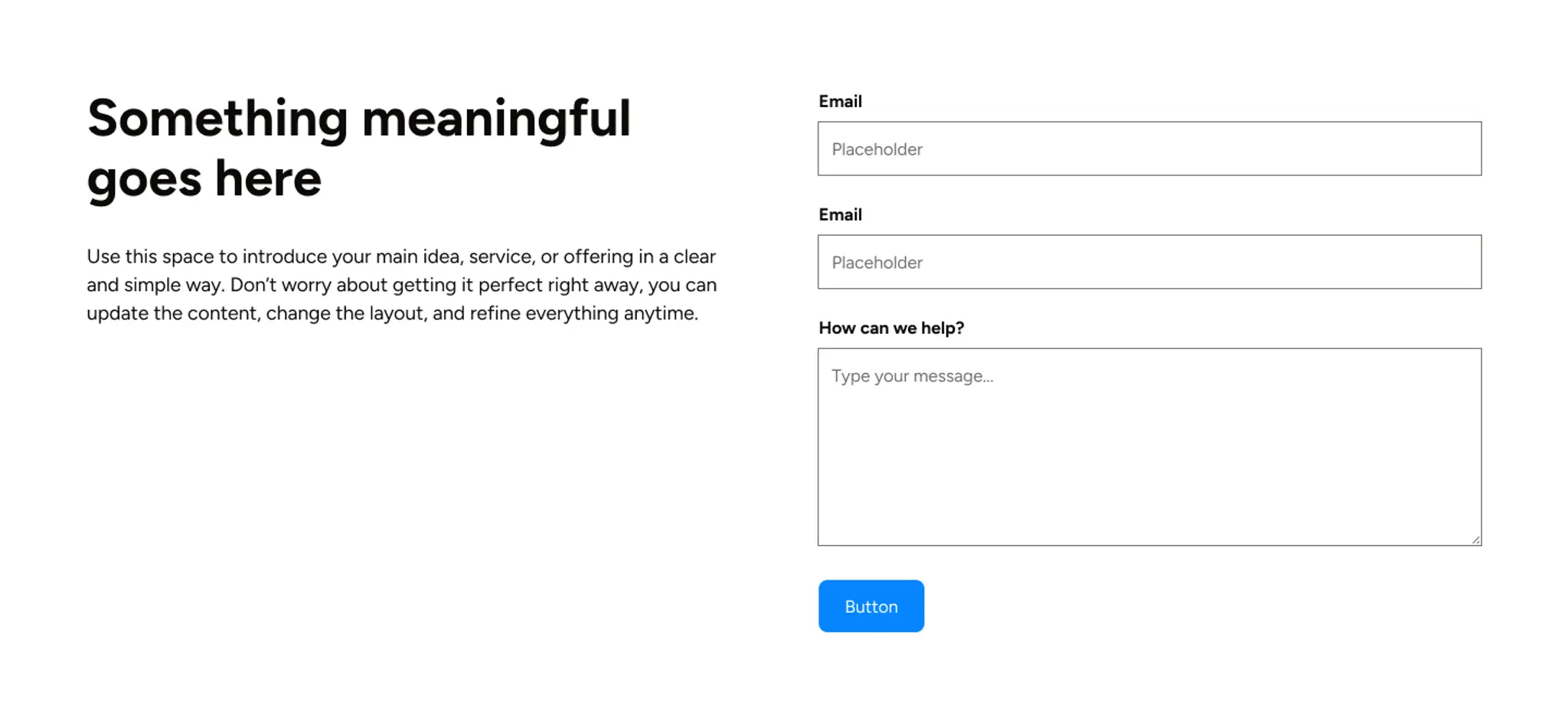
Create a contact section with the text on the left and a
form on the right. On the left, put the heading and a
short paragraph. On the right, add a name field, an
email field, a "How can we help?" message box, and a
submit button. Dark text on a light background.
Change these bits
- Pricing:
[paste each plan]to Your real plan names, prices, and features — never invented ones - Testimonials:
[paste each as quote — name — title, company — rating]to Real customer quotes, or say you don't have any yet - Services:
[paste each as name — one-line description]to Your actual service list - Team:
[paste each as name — job title, company — one-line bio]to Your actual team members - Stats:
[paste each as number — heading — one line]to Your real numbers
Why this matters. Unlike hero or About, these sections are only as trustworthy as the details you give them. A pricing table with invented numbers, or a stats section with a made-up client count, is the fastest way to lose a visitor's trust.
Where to use it
🔲 Click the section you want each new one to appear next to first, then paste.
What you'll get
A complete section for whichever type you picked, using your real details, styled to match your site's theme.
What won't change: anything else already on your page.
Didn't work the way you expected?
Press Cmd + Z (Mac) or Ctrl + Z (Windows) and the section disappears. ⚠️ Verify undo works cleanly for a newly-added section.
If your real details didn't come through and it used placeholders instead, check that you pasted them inside the prompt itself before sending — not as a separate message.