
3 AI Prompts for Your About Section
Copy one of these three ready-to-use AI prompts to build an About section for your website. No fields to fill in — just paste.
Last updated July 31, 2026
Prompts for your About section
🔲 Select the section you want this to appear near, then paste
Three ready-made layouts for telling people who you are. Nothing to fill in — just pick one and paste it.
Split header — heading left, buttons and text right, image below
Good for a more structured, magazine-style feel.
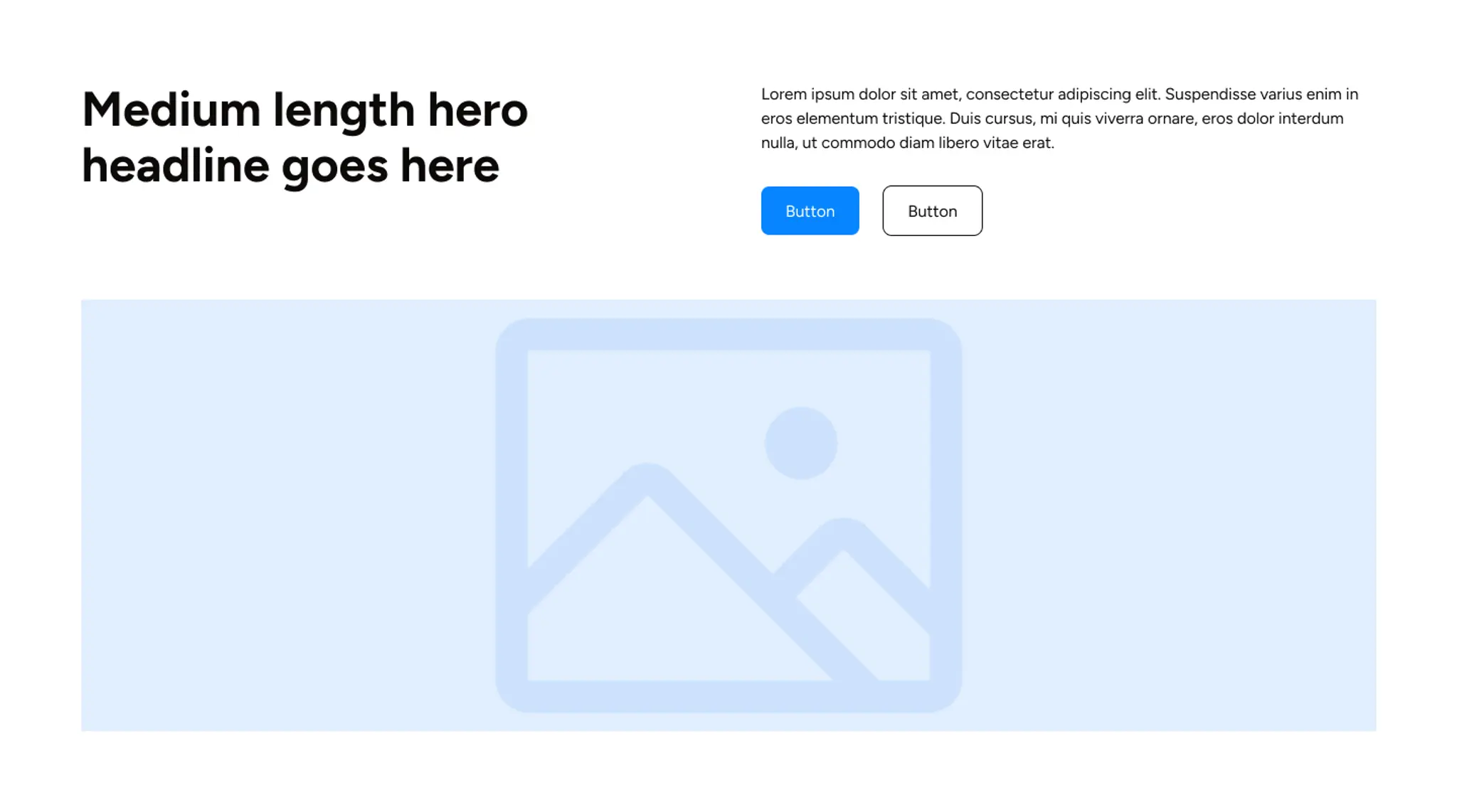
Create an About section with a split header: put the
headline on the left, and a short paragraph with two
buttons — "Get started" and "Learn more" — on the
right. Below the whole header, add one full-width
image. Dark text on a light background.
Stacked centred — everything in one column, image below
Good for a simpler, more minimal feel.
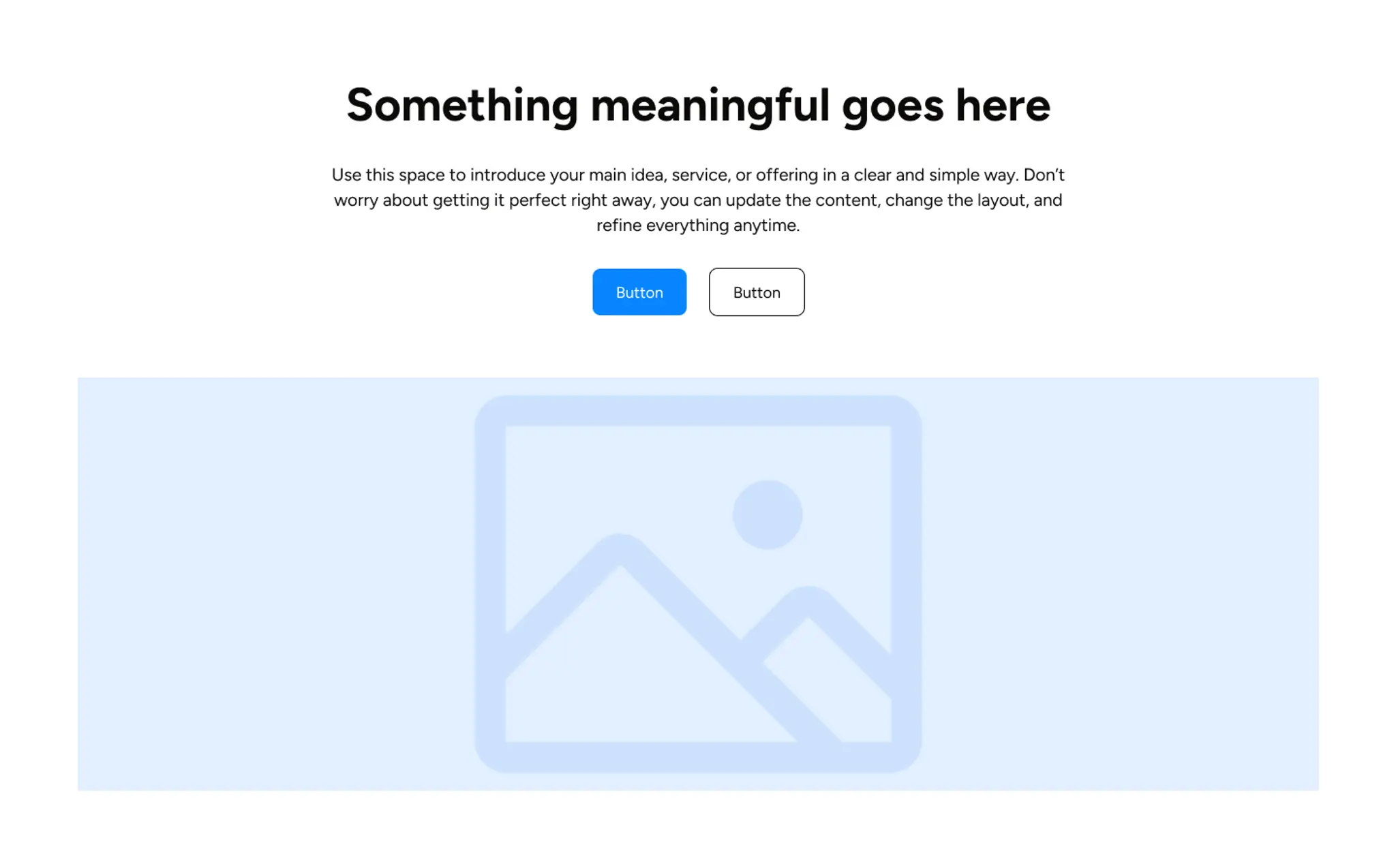
Create an About section with everything centered in
a column: a headline at the top, a short paragraph
below it, then two centered buttons — "Get started"
and "Learn more." Underneath, add one full-width
image. Dark text on a light background.
Split — text left, image right
Good if you already have one strong photo you want to feature alongside your story.
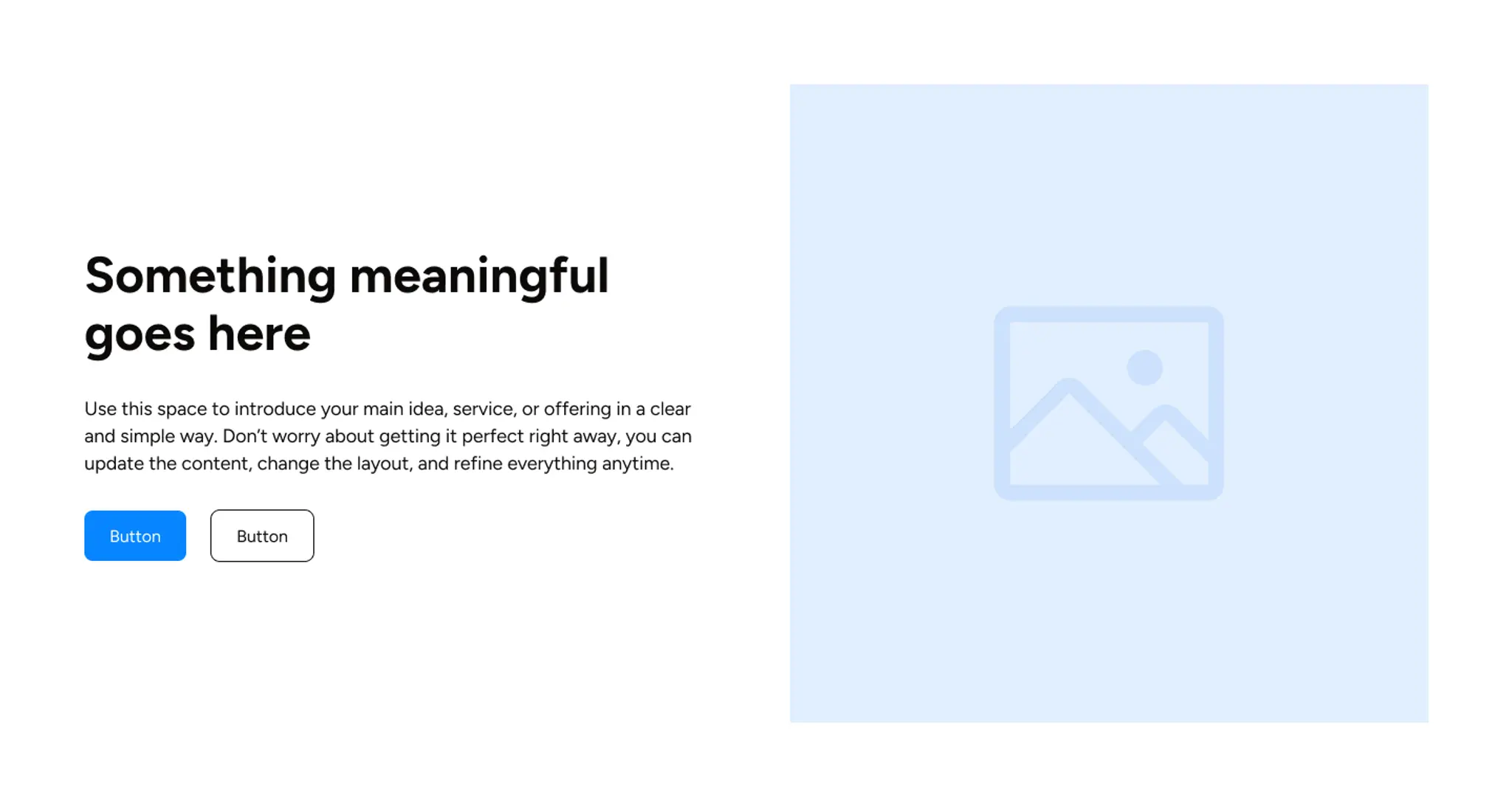
Create an About section with the text on the left and
one image on the right. Put the headline first, then a
short paragraph introducing the business, then two
buttons — "Get started" and "Learn more." Dark text
on a light background.
Nothing to fill in
All three prompts above are ready to paste exactly as they are. Once the section appears, edit the placeholder headline and paragraph text directly on the canvas to tell your own story.
Where to use it
🔲 Click the section you want this new About section to appear next to first, then paste your prompt.
What you'll get
A complete About section — headline, short paragraph, two buttons, and one image slot — styled to match your site's theme.
What won't change: anything else already on your page. This only adds the new section.
Didn't work the way you expected?
Press Cmd + Z (Mac) or Ctrl + Z (Windows) and the section disappears. ⚠️ Verify undo works cleanly for a newly-added section.
If it landed in the wrong place, click the section you want it next to and try again.
If one layout feels wrong for your business, try one of the other two — same idea, different arrangement.