How do I change how my website appears on Google and when shared?
Set your website's title, description and share image in Site Settings, so it looks right on Google and when your link is shared on WhatsApp or social media.
Last updated September 24, 2026
How do I change how my website appears on Google and when shared?
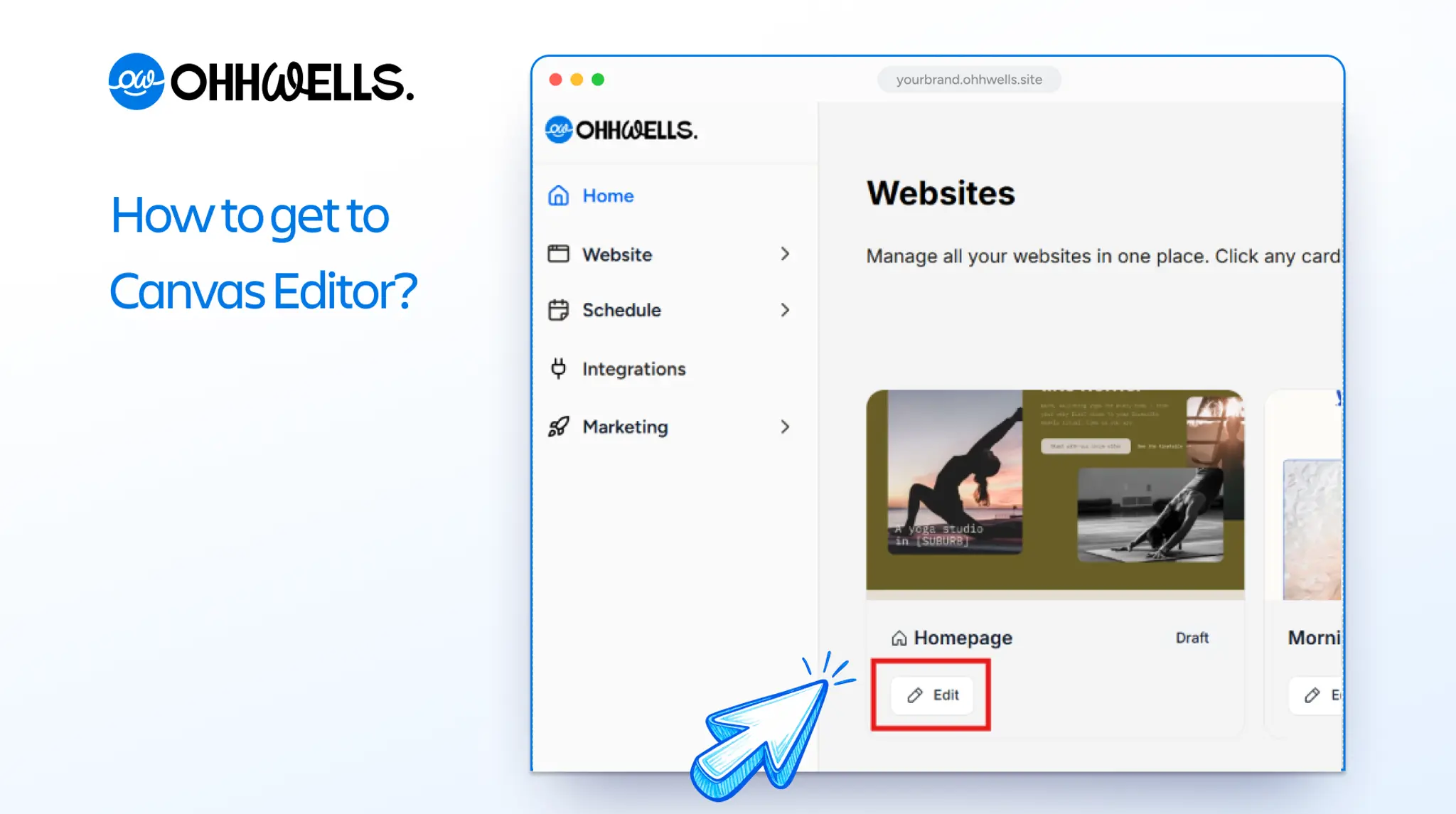
Open your website in the Canvas editor, go to Settings and choose the Site Settings tab. Add a Site Meta Title (up to 60 characters), a Site Meta Description (up to 160 characters) and a Social Preview Image. A live preview shows how Google may display your site. Click Publish to make your changes live.
What you'll need
- An image for link previews (optional but recommended): PNG, JPG or WebP, no bigger than 5MB. 1200 × 630 pixels works best.
What these settings control
Metadata is the behind-the-scenes information that tells Google and other apps what your website is about. You set it once for the whole site.
Site Meta Title can be up to 60 characters. It's the blue headline people see in Google results, the name on the browser tab, and the title that appears when your link is shared.
Site Meta Description can be up to 160 characters. It's the grey summary under your headline in Google, and the text that appears on shared links.
Social Preview Image must be a PNG, JPG or WebP file of up to 5MB, and 1200 × 630 pixels is recommended. It's the picture people see when your link is shared on WhatsApp, Facebook, LinkedIn and similar apps.
Steps
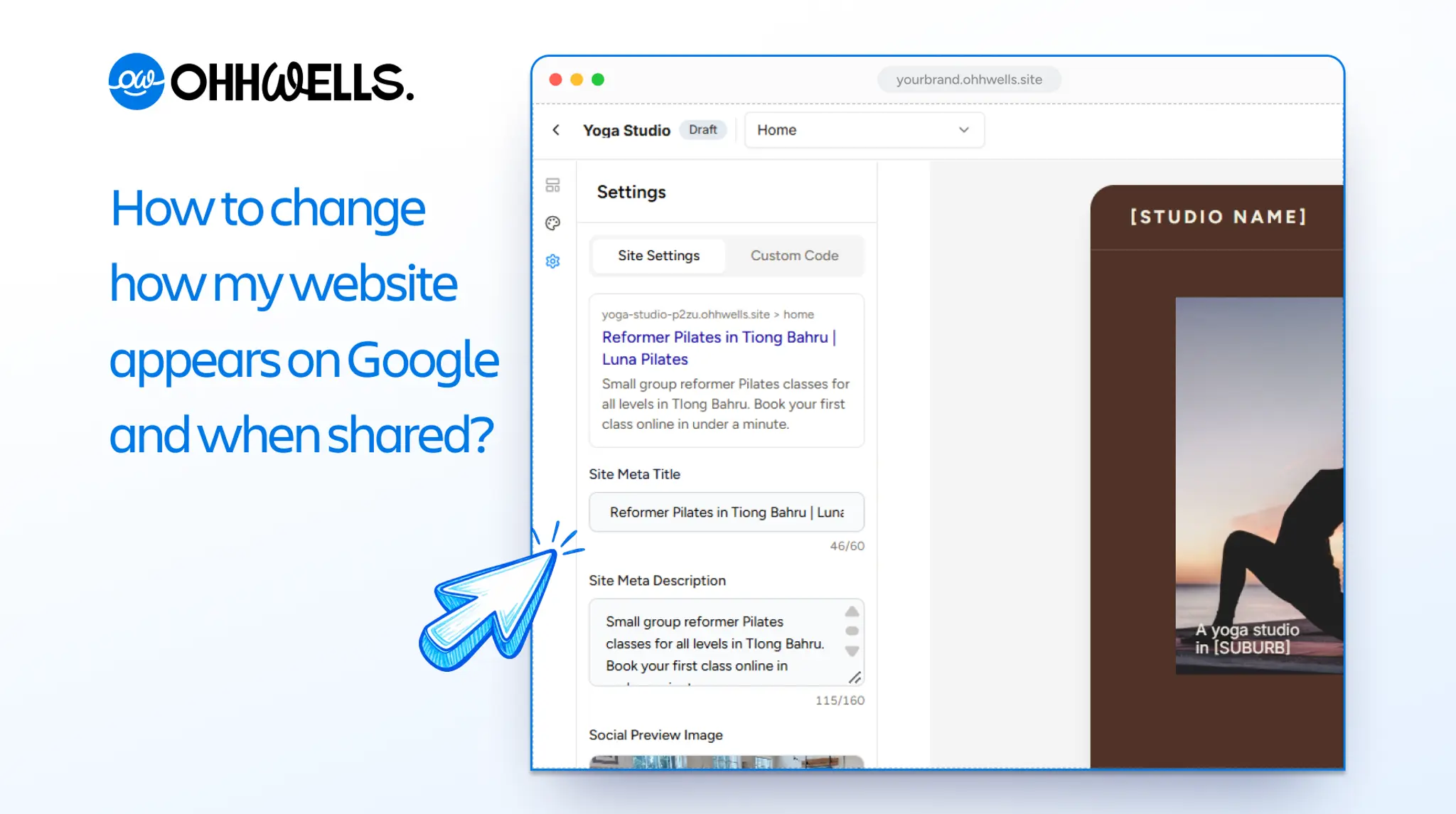
- Open your website in the Canvas editor.
- Open the Settings panel.
- Click the Site Settings tab.
- Look at the Search engine preview card at the top. It shows your web address followed by "home", with your title and description underneath. It changes as you type, so you can check your wording before anything goes live.
- In Site Meta Title, type your title. If your site already had a title, it will already be filled in; you can keep it or change it. Keep an eye on the counter so you stay within 60 characters.
- In Site Meta Description, type a short summary of what you offer and who it's for. Stay within 160 characters.
- Under Social Preview Image, drag your image into the dashed box, or click browse to choose a file from your computer. Your image appears in the box once it's uploaded.
- Your changes save automatically as a draft. They are not live yet.
- Click Publish. Your new title, description and image now apply to your live website.
What to write
- Title: business name + main service + location. For example: Reformer Pilates in Tiong Bahru | Luna Pilates.
- Description: what you offer, who it's for and one reason to choose you. For example: Small-group reformer Pilates classes for all levels in Tiong Bahru. Book your first class online in under a minute.
- Image: your logo on a plain background, or a clear photo of your space or work. Avoid small text; it's hard to read in a chat preview.
Troubleshooting
Google still shows my old title after I published
Google refreshes its results on its own schedule, so changes can take anywhere from a few days to a few weeks to appear. There's nothing more to do on OhhWells once you've clicked Publish. If you use Google Search Console (Google's free tool for site owners), you can ask Google to check your homepage again.
My share image isn't showing on WhatsApp or Facebook
First, check you clicked Publish after adding the image. If you have, the app may be showing a saved copy of your old preview. Chat and social apps store link previews for a while, so try sharing the link in a new chat, or wait a day and try again.
My image won't upload
Check the file is PNG, JPG or WebP and no bigger than 5MB. Other file types, and larger files, won't be accepted. To make a file smaller, save it at 1200 × 630 pixels or export it at a lower quality.
My title or description won't fit
Keep the title to 60 characters and the description to 160. Longer text is usually cut off in Google results, so put the most important words first.
My search preview shows "yoursite.com"
The preview uses your OhhWells web address or your custom domain. If you see "yoursite.com", your site's address isn't set up yet. See Connect a custom domain below.
Still stuck? Start a chat with support@ohhwells.com and we'll sort it out.\